
Cloud & sharing
Save to a free account, share a link and edit together in real time. People you invite don't need an account.
koi.photo is a collaborative photo editor: save a document to the cloud, share a link, and edit it together in real time, with everyone's cursor on the canvas. A free account gives you 1 GB of cloud storage, folders and version history. The people you share with don't need an account.
The cloud is optional
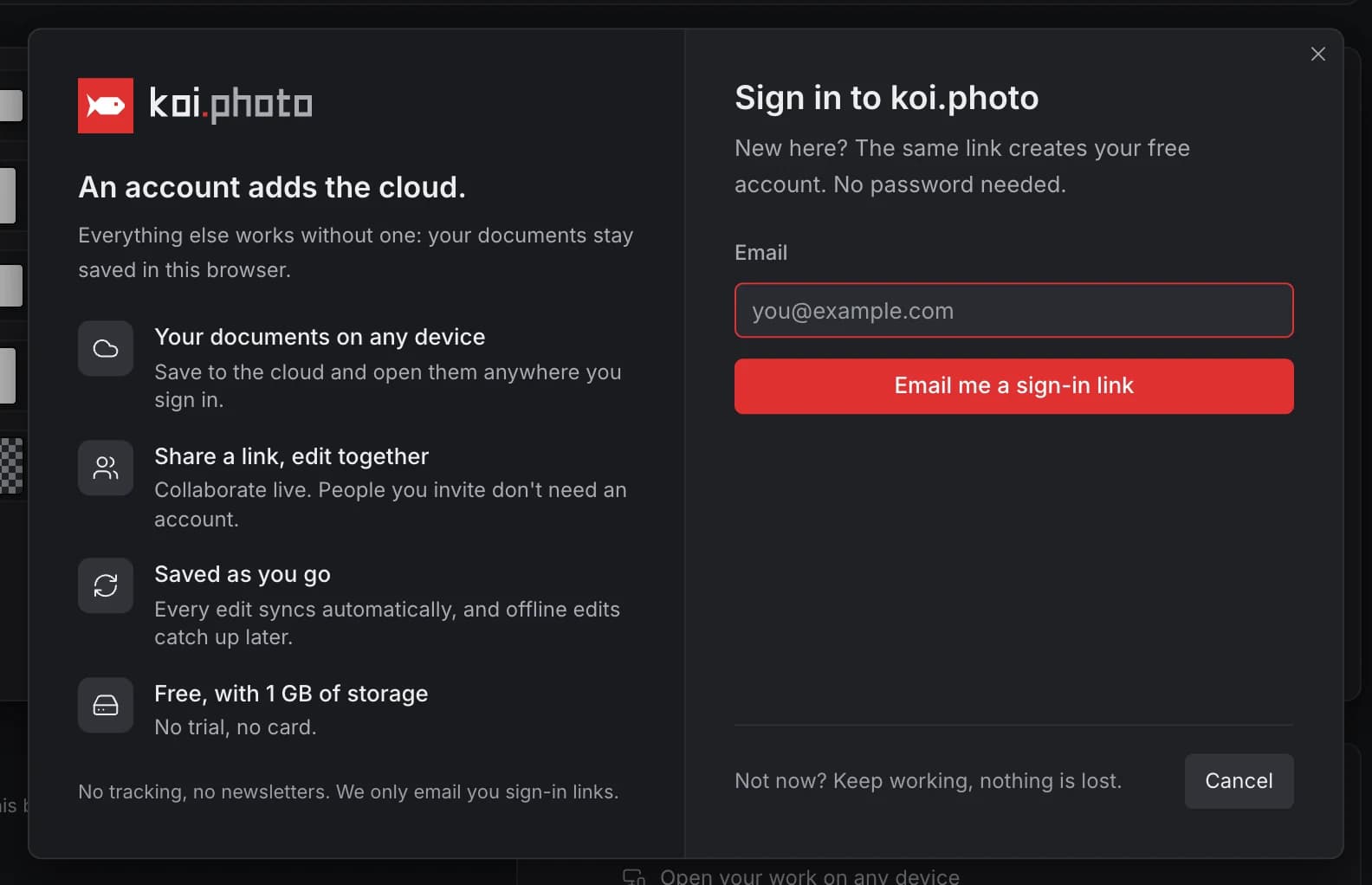
Everything else in koi.photo works without an account. Your documents are autosaved in your browser, and nothing is uploaded. An account adds:
- your documents on any device you sign in on,
- share links and live editing with other people,
- version history,
- 1 GB of storage, free. There's no trial and no card.
Sign in
Click Sign in in the top-right corner. Enter your email and click Email me a sign-in link. Open the link from your inbox in the same browser and you're signed in. There's no password, and the same link creates your account if you're new.
Save to the cloud and open from it
- File ▸ Save to Cloud… uploads the open document. Pick a folder and a name.
- File ▸ Open from Cloud… (⌥⌘O, or Ctrl+Alt+O) opens your files. Account ▸ Your Files… does the same.
Cloud documents save as you go: a moment after you stop editing, your changes are in the cloud. The status next to the document title shows Saving…, Saved or Offline. If you lose your connection, you keep working; the changes stay in your browser and are saved when you're back online.
Your files
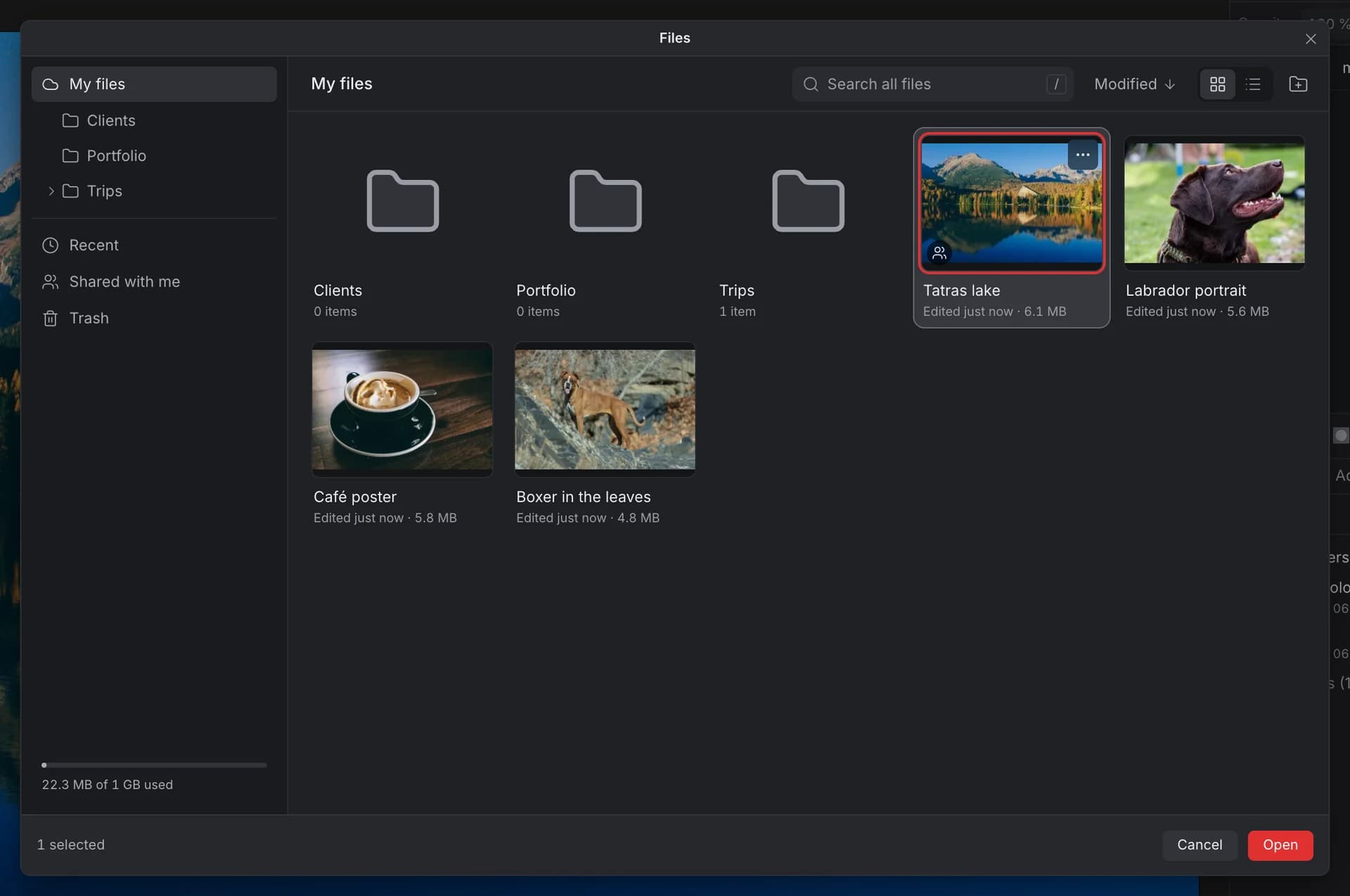
- My files: your documents and folders. Create a folder with the folder button or ⇧⌘N (Ctrl+Shift+N), rename with F2, and drag files onto a folder to move them.
- Recent: cloud files you opened lately.
- Shared with me: documents other people shared with you.
- Trash: deleted files stay here for 30 days, then they're deleted for good. You can restore them until then. Files in the Trash still count toward your storage.
- Search (press /) finds files and folders by name.
- Switch between a grid with thumbnails and a list, and sort by date, name or size.
Each file's menu also has Download .koi, so you can keep a copy on your computer.
Version history
Choose File ▸ Version History… to see earlier versions of a cloud document. Use File ▸ Save Version… to mark a point you want to come back to, with a name like "Before colour grading".
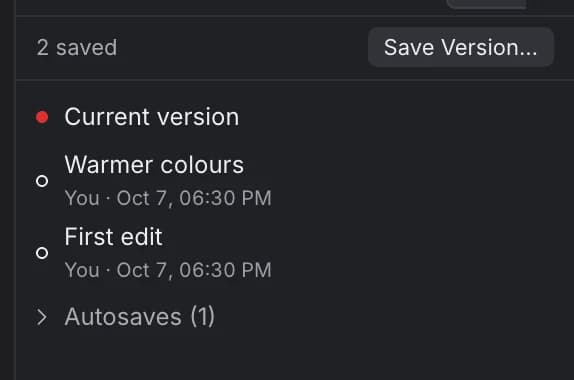
- You can keep up to 100 named versions per document. The panel also lists the latest 50 autosaves.
- Preview opens a version read-only in its own tab. The live document isn't changed.
- Restore This Version replaces the current document with it. Everyone editing sees the change, and you can undo it.
- Restore as Copy saves the version as a new document.
Share a link
Choose File ▸ Share… or click Share in the top bar. If the document is only in your browser, koi.photo saves it to the cloud first.
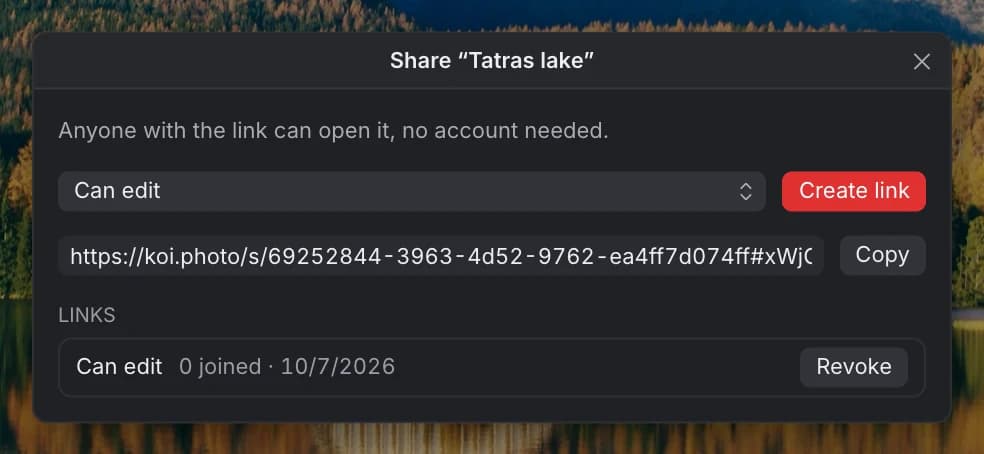
- Choose Can edit or Can view.
- Click Create link. The link is copied for you.
- Send it to anyone. Anyone with the link can open it, no account needed.
The dialog lists the People who joined and your Links. Remove takes away one person's access; Revoke turns a link off and removes everyone who joined through it. Only the owner of a document can create or revoke links. A document can have up to 50 people and 20 active links.
Link previews. When you paste a share link into Slack, iMessage or a social network, it unfurls as a card with the document's thumbnail, its name and your name. The preview needs only the link, so it works without the secret part, and it stops as soon as the link is revoked or expires. A plain /d/… document address never shows your document: it unfurls as a generic koi.photo card.
Edit together in real time
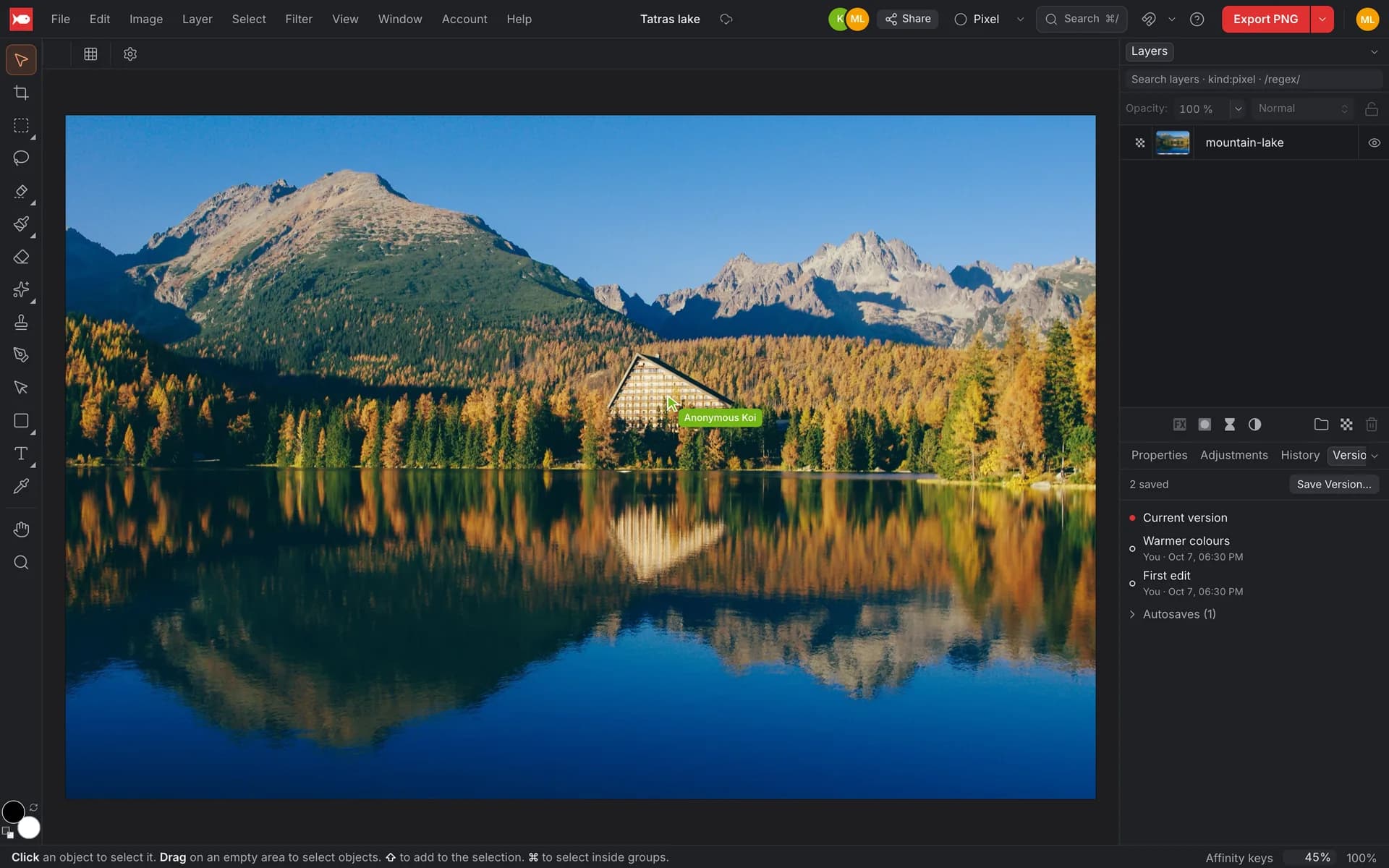
When someone opens your link, their avatar appears in the top bar. You see their cursor on the canvas with their name, and the layers they've selected are outlined in their colour. Edits show up for everyone almost immediately.
- Undo is personal. ⌘Z (Ctrl+Z) undoes your own changes, not someone else's.
- Viewers see a View only label. They can look and follow along, but not change anything.
- Your name and colour are set in Account Settings… ▸ Profile.
Guests
People who open a link without an account join as guests, with a name like "Anonymous Lynx". Guests can view or edit what was shared with them (depending on the link) and find it under Shared with me. They can't save their own documents to the cloud, create folders or share links.
A guest who signs up or signs in keeps access to everything that was shared with them.
Storage and account settings
Open Account ▸ Account Settings…:
- Profile: your display name, your colour and your email address.
- Storage: how much of your 1 GB you use, your largest files, Empty Trash, and Download all files (.zip) to get every document as a .koi file.
- Security: sign-in methods, Sign Out on this browser or Sign Out Everywhere, and Delete Account…, which removes your account and all cloud files.
- Sharing: every share link you've created, with a Revoke button each.
If your storage is full, your edits stay in your browser until you free up space.
When you sign out, open cloud documents stay in the browser as local copies.
Try it in the editorFAQ
Is the cloud free? Yes. A free account includes 1 GB of storage. The editor itself is free with or without an account; see Free & private.
Do the people I share with need an account? No. Anyone with the link can open the document as a guest.
Can I share a view-only link? Yes. Choose Can view before you click Create link.
What happens to my files if I stop using the cloud? Use Download all files (.zip) in Account Settings ▸ Storage to keep every document as a .koi file. You can open those in koi.photo without an account. See .koi files.
What if my connection drops while I edit? Keep working. Your changes stay in the browser and are saved to the cloud when you're back online.