
Comparison
How koi.photo compares with Photoshop, Affinity and Photopea: price, PSD support, on-device AI and current limits.
If you're looking for a free Photoshop alternative online, this page shows how koi.photo compares with Adobe Photoshop, Affinity and Photopea, as of October 2026. We stick to facts you can check, including what koi.photo can't do yet.
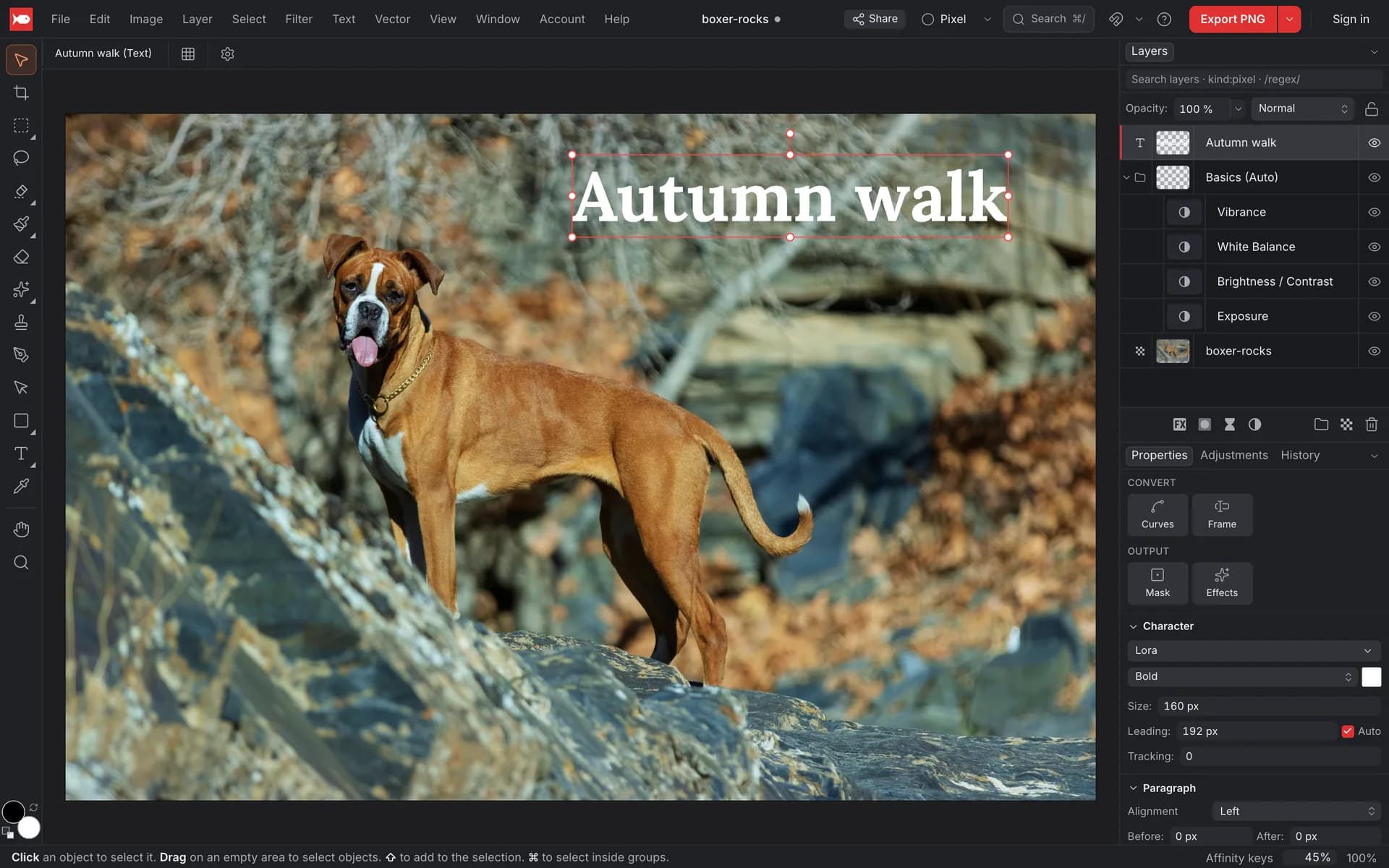
Where koi.photo fits best
koi.photo is built for people who want a free editor in the browser with layers, masks, PSD support and on-device AI, without an account or an install. It's also a good fit when you want to edit a document together with someone in real time, or when you work across photos and vector graphics in one app.
Comparison table
| koi.photo | Photoshop | Affinity | Photopea | |
|---|---|---|---|---|
| Price | Free | Paid subscription | – | Free, with ads |
| Where it runs | Browser | Desktop app (Adobe also has a web version) | Desktop app | Browser |
| Account needed | No | Yes (Adobe account) | – | No |
| Opens and exports PSD | Yes, with limits | Yes (native format) | Yes | Yes |
| AI that runs on your device | Select Subject, Remove Background | – | – | – |
| Generative AI | Optional: Generative Fill, Expand, AI Remove (free account, 50 credits a month) | Yes | – | – |
A dash means we'd rather not state something we can't verify for a product that changes often. Check the vendor's own site for prices and current features.
Where koi.photo is strong
- Free, with no account. No trial, no watermark, no sign-up. See Free & private.
- On-device AI. Select Subject and Remove Background run in your browser. Your photo isn't uploaded. → Select Subject
- Non-destructive editing. Adjustments (Curves, Levels, HSL and more) and live filters (blurs, sharpening, noise) are layers you can change or hide later. → Adjustments & filters
- PSD round trip. Open a PSD with its layers, groups, masks, adjustment layers and text, and export back to PSD. → PSD files
- Photo and vector in one app. Switch between the Pixel and Vector studios. The vector tools include the Pen, shapes and live boolean operations. → Vector tools
- Real-time collaboration. With a free account, share a link and edit the same document together, with live cursors. → Cloud & sharing
- Familiar shortcuts. Pick an Affinity, Photoshop or Figma keyboard layout.
Current limits
Good to know before you start a project:
- HEIC and TIFF. koi.photo can't open HEIC or TIFF files yet. Camera RAW files open in Develop.
- Print and colour. koi.photo works in 8- or 16-bit RGB. A 32-bit PSD opens as 16-bit, and CMYK PSDs can't be opened yet. Photoshop and Affinity support CMYK and 32-bit for print and HDR work.
- Brushes and retouching depth. koi.photo has a Paint Brush, Remove tool, Healing Brush, Clone Brush and Liquify, but no Dodge, Burn or Sponge and no lens correction.
- Plugins. koi.photo has no plugin support.
- File formats. koi.photo exports PNG, JPEG, WebP, SVG, PDF and PSD, but not AVIF, GIF or TIFF.
- Maturity. koi.photo is new, while Photoshop has been around for decades.
Switching to koi.photo
The start screen lets you pick a Shortcut layout: Affinity (the default), Photoshop or Figma. The menu bar follows the classic order you know from Photoshop and Affinity Photo: File, Edit, Image, Layer, Select, Filter and so on.
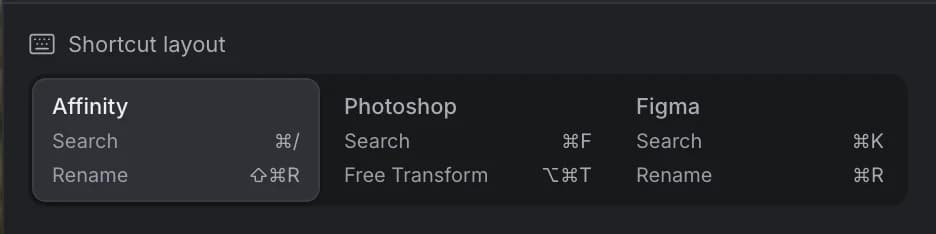
If you can't find a command, press ⌘/ (Ctrl+/) and type its name. See Keyboard shortcuts for the full list and the differences between layouts.
Try it in the editorFAQ
Is koi.photo a free Photoshop alternative? For many everyday jobs, yes: layers, masks, adjustments, retouching, text, background removal and PSD files, all free in your browser. For CMYK print work or plugins, it isn't a replacement yet.
Can I open my Photoshop files? Yes. koi.photo opens PSD files with layers, masks, many adjustment layers and editable text. Some things are converted or left out, and it tells you which. PSB files can't be opened. See PSD files.
Is koi.photo like Photopea? Both are free and run in the browser without an account. koi.photo runs its AI on your device, has real-time collaboration with a free account, and has no ads.
Does koi.photo have generative AI? Yes, optionally: Generative Fill, Generative Expand and AI Remove run on cloud models with a free account and monthly credits. There's no text-to-image. The local AI (Select Subject, Remove Background) and the local Remove tool stay free and run on your device. → Generative AI
Adobe and Photoshop are registered trademarks of Adobe Inc. Affinity is a trademark of Serif (Europe) Ltd / Canva. Photopea and Figma are trademarks of their respective owners. koi.photo isn't affiliated with or endorsed by any of them; the names are used only to compare products factually, based on public information as of October 2026.