
FAQ
Quick answers about koi.photo: cost, privacy, browsers, offline use, file formats, AI and collaboration.
Short answers to the questions people ask most about koi.photo, the free online photo editor. Each answer links to a page with the details.
Cost & account
Is koi.photo free?
Yes. The whole editor is free, with no trial, no watermark and no paywall. That includes the AI tools Select Subject and Remove Background. The optional cloud tools (Generative Fill, Expand, AI Remove) need a free account and use monthly credits. → Free & private
Do I need an account?
No. You can use everything in the editor without signing up. Your work is autosaved in your browser.
What does the free account add?
Cloud storage (1 GB), access to your documents from any device, version history, share links and real-time collaboration. You sign in with an email link, with no password. → Cloud & sharing
Privacy
Does koi.photo upload my photos?
No. Photos you open are edited in your browser and aren't uploaded. A document only goes to koi.photo's servers if you save it to the cloud. → Free & private
Is the AI private?
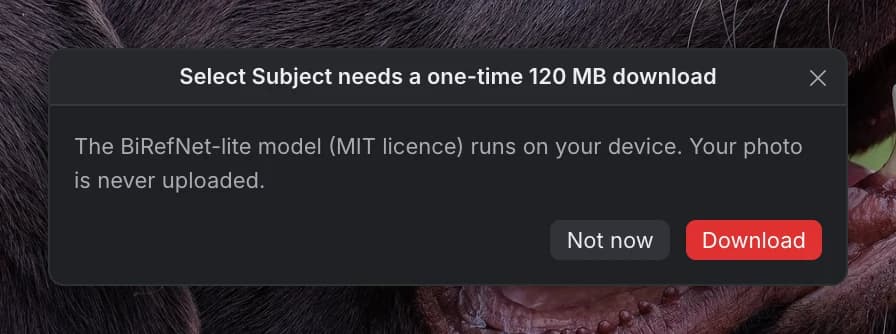
The local AI is. Select Subject and Remove Background run on your computer. The AI model is downloaded once, after you agree, and your photo is never sent anywhere for processing. → Select Subject
The optional generative tools are different: they send the area around your selection to a cloud model, and only when you click Generate. → Generative AI
Where is my work saved?
As you edit, koi.photo autosaves to your browser's storage and offers to recover unsaved work after a crash. For a lasting copy, save a .koi file to your disk or save to the cloud. Clearing your browser's site data deletes the autosaved copies. → .koi files
Browsers & devices
Which browsers does koi.photo work in?
Recent versions of Chrome and Edge work best. koi.photo uses WebGPU to draw your image on the graphics card. Where WebGPU isn't available, it falls back to WebGL2 in a limited mode, in which some features are reduced.
Does koi.photo work offline?
Not really. There's no installable app and no offline mode, so the editor needs to load from koi.photo. Once the AI model has been downloaded, the AI itself runs without a connection.
Does it work on a phone or tablet?
koi.photo is made for desktop browsers. Touch gestures such as pinch-to-zoom on a touchscreen aren't supported yet. A mouse, a trackpad (pinch to zoom works) or a pen all work, and pen input has palm rejection.
Do I need to install anything?
No. koi.photo runs in a browser tab.
Files & formats
Can I open PSD files online?
Yes. koi.photo opens Photoshop files with their layers, groups, masks, many adjustment layers and editable text, up to 30,000 px per side. It can also export back to PSD. PSB files can't be opened. → PSD files
Which file formats can koi.photo open?
.koi, PNG, JPEG, WebP, PSD and SVG, plus AVIF, GIF and BMP. It can't open HEIC, camera RAW, TIFF, JPEG XL, PSB, PDF or Illustrator (.ai) files.
Which formats can I export?
PNG, JPEG, WebP, SVG, PDF and PSD. → Export
How do I keep a document editable?
Save it as a .koi file with File ▸ Save (⌘S, or Ctrl+S on Windows). It keeps every layer, mask, adjustment and text layer editable. → .koi files
Can I use my Photoshop or Affinity shortcuts?
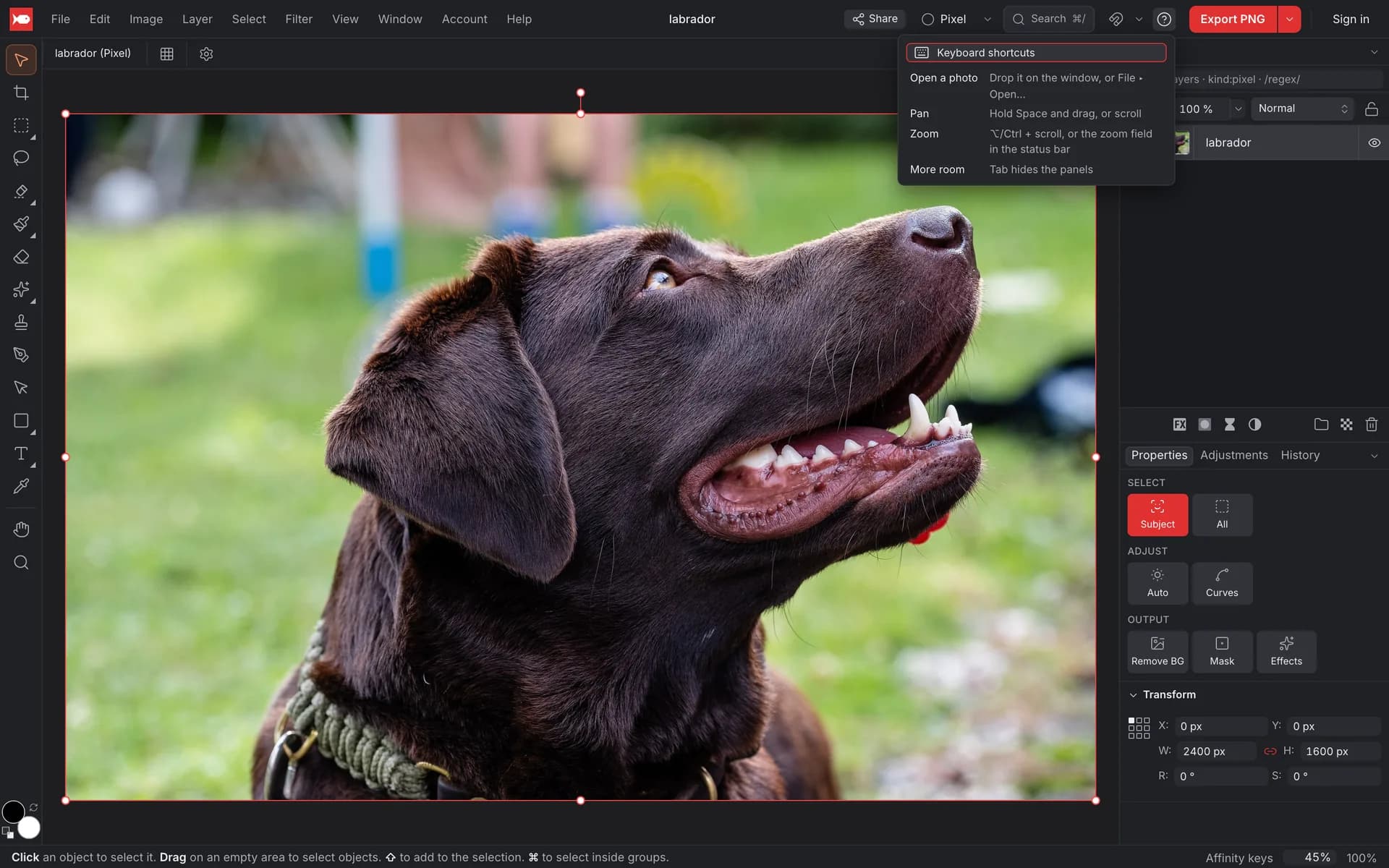
Yes. Pick the Photoshop, Affinity or Figma shortcut layout on the start screen. → Keyboard shortcuts
AI
What can the AI do?
On your device, for free: Select Subject selects the main subject of a photo, and Remove Background hides everything else with a layer mask. → Select Subject
In the cloud, with a free account and credits: Generative Fill, Generative Expand and AI Remove. → Generative AI
How big is the AI download?
About 120 MB in browsers with WebGPU, or about 19 MB for the smaller model used in other browsers. It's downloaded once and kept by your browser.
Does koi.photo have generative AI?
Yes, optionally. Generative Fill, Generative Expand and AI Remove run on cloud models. They need a free account and use credits (50 a month, 1 per image). The local tools stay free and private: the Remove tool's Local engine and content-aware fill rebuild an area from the surrounding pixels on your device. → Generative AI
Collaboration
Can I edit a photo together with someone?
Yes, with the free account. Save the document to the cloud, click Share, and send the link. You see each other's cursors and changes live. → Cloud & sharing
Does the person I share with need an account?
No. Anyone with the link can open it without an account. You choose whether the link can edit or only view.
Try it in the editorStill curious? Start with What is koi.photo? or see how koi.photo compares.