
Touch & tablets
Use koi.photo on an iPad or Android tablet with Apple Pencil and fingers: gestures, pressure, palm rejection and on-screen modifier keys.
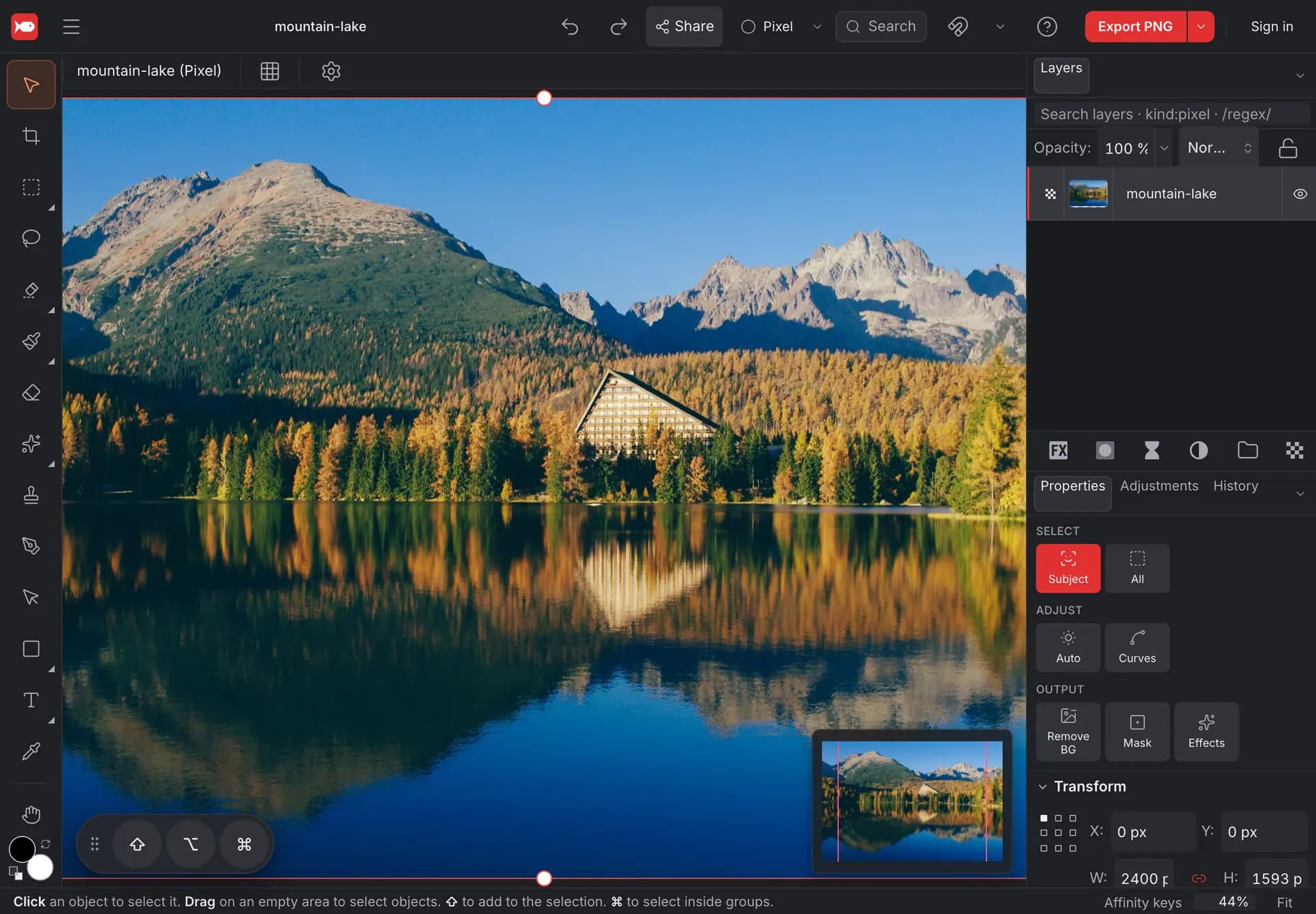
koi.photo works on tablets and touch screens. Open it in Safari on an iPad or Chrome on an Android tablet. Paint and draw with a pen such as Apple Pencil, and use your fingers to move around the canvas. When the editor sees a touch screen, it makes buttons, menus and panel rows bigger so they're easy to hit with a finger.
Gestures
| Gesture | What it does |
|---|---|
| Two fingers apart / together | Zoom in or out around your fingers |
| Two fingers drag | Move around the canvas |
| Two fingers twist | Rotate the view. It snaps back to straight when you get close to 0°. Fit (bottom right) straightens it again too |
| Two-finger tap | Undo |
| Three-finger tap | Redo |
| Two fingers, hold still | Open the canvas menu (Copy, Paste, Arrange…) |
If a stroke has just started when the second finger lands, koi.photo drops the stroke, so a pinch never leaves a stray dab of paint behind.
Drawing with a pen
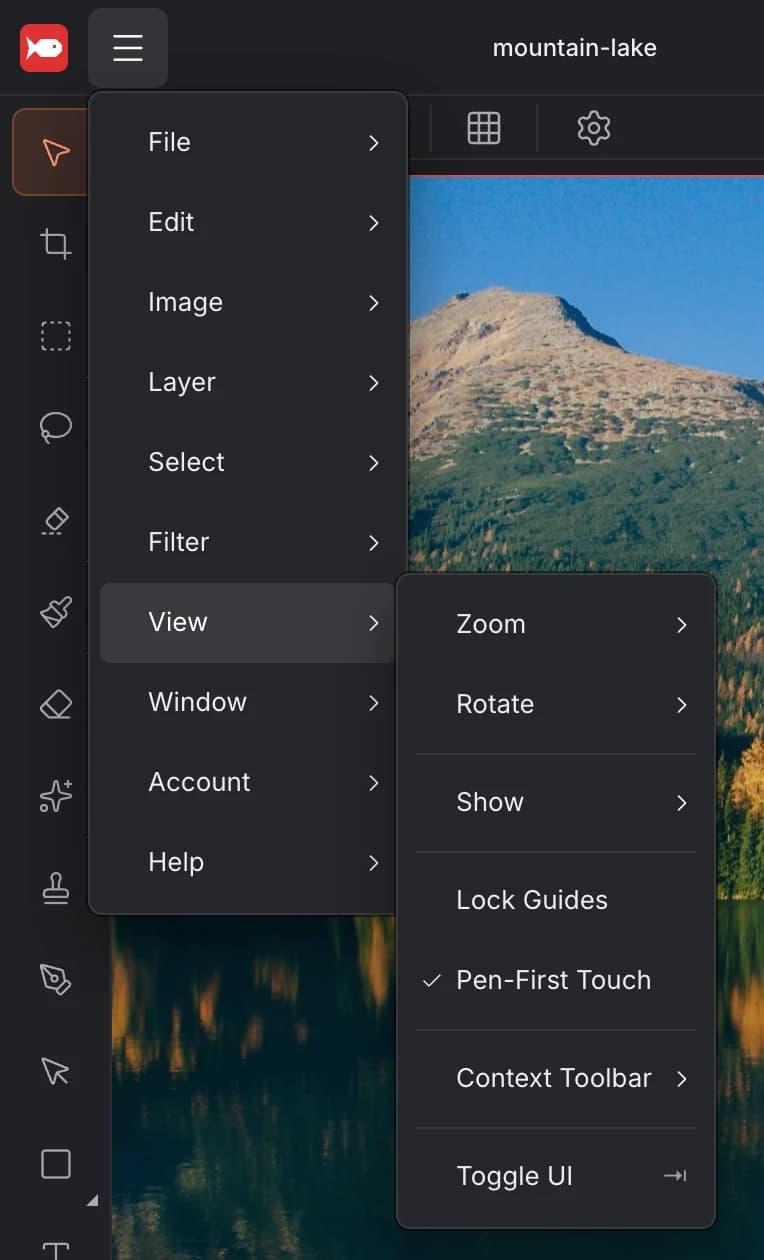
The pen drives the tools. Brushes respond to pen pressure: press lightly for a thin line, harder for a thick one. A mouse or a finger paints at full pressure.
After you've used the pen once, your fingers stop drawing. They only move, zoom and rotate the canvas, so your hand can rest on the screen while you draw. While the pen touches the screen, other touches are ignored. To draw with your finger again, turn off View ▸ Pen-First Touch.
Shift, Option and Command without a keyboard
Many tools change what they do while you hold a modifier key. For example, Shift keeps a move straight and Option duplicates. Without a keyboard, use the round keys in the corner of the screen: ⇧ (Shift), ⌥ (Option, Alt on Windows) and ⌘ (Command, Ctrl on Windows).
- Tap a key to turn it on. It stays on, shown in red, until you tap it again.
- Press and hold a key to use it only while you hold it, for example hold ⇧ with one hand while you drag with the pen.
- Drag the dotted handle to move the keys out of your way. koi.photo remembers where you put them.
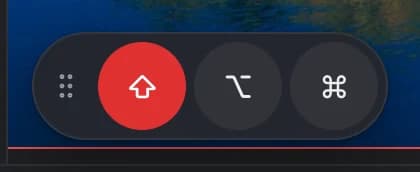
The keys hide when you press a modifier on a hardware keyboard, and come back the next time you touch the screen.
Panels on smaller screens
In portrait, the panels slide in from the right so the canvas keeps the full width. Tap the panels button in the top bar to open them, and tap the canvas to close them again.
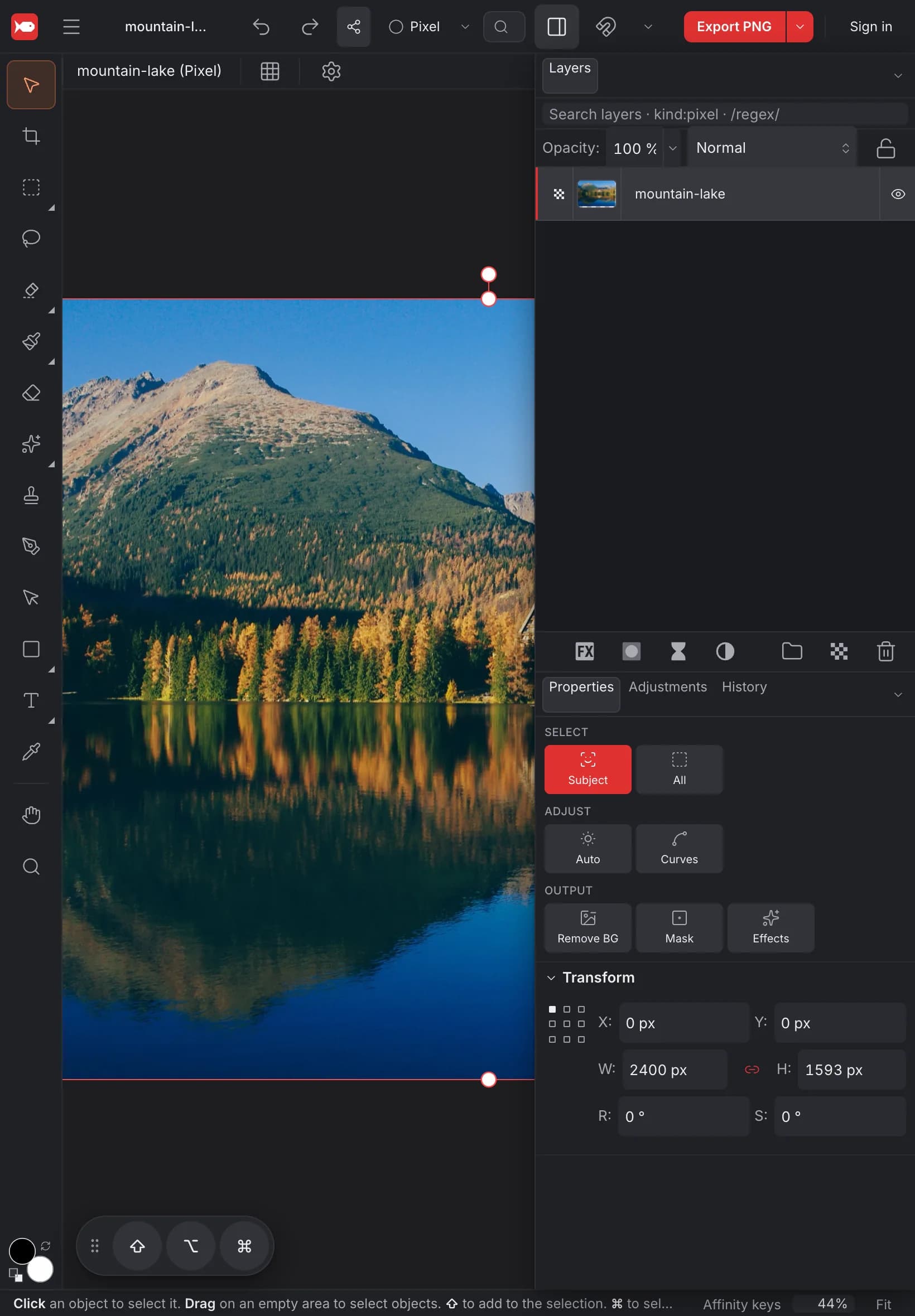
On a touch laptop, gestures and the pen work the same way. The rest of the editor keeps its desktop sizes.
Try it in the editor