
What is koi.photo?
A free photo and vector editor in your browser, with layers, masks, PSD files and on-device AI. No install needed.
koi.photo is a photo and vector editor that runs in a browser tab. It's free, you don't have to install anything, and you don't need an account. You open koi.photo, drop in a photo and start editing.
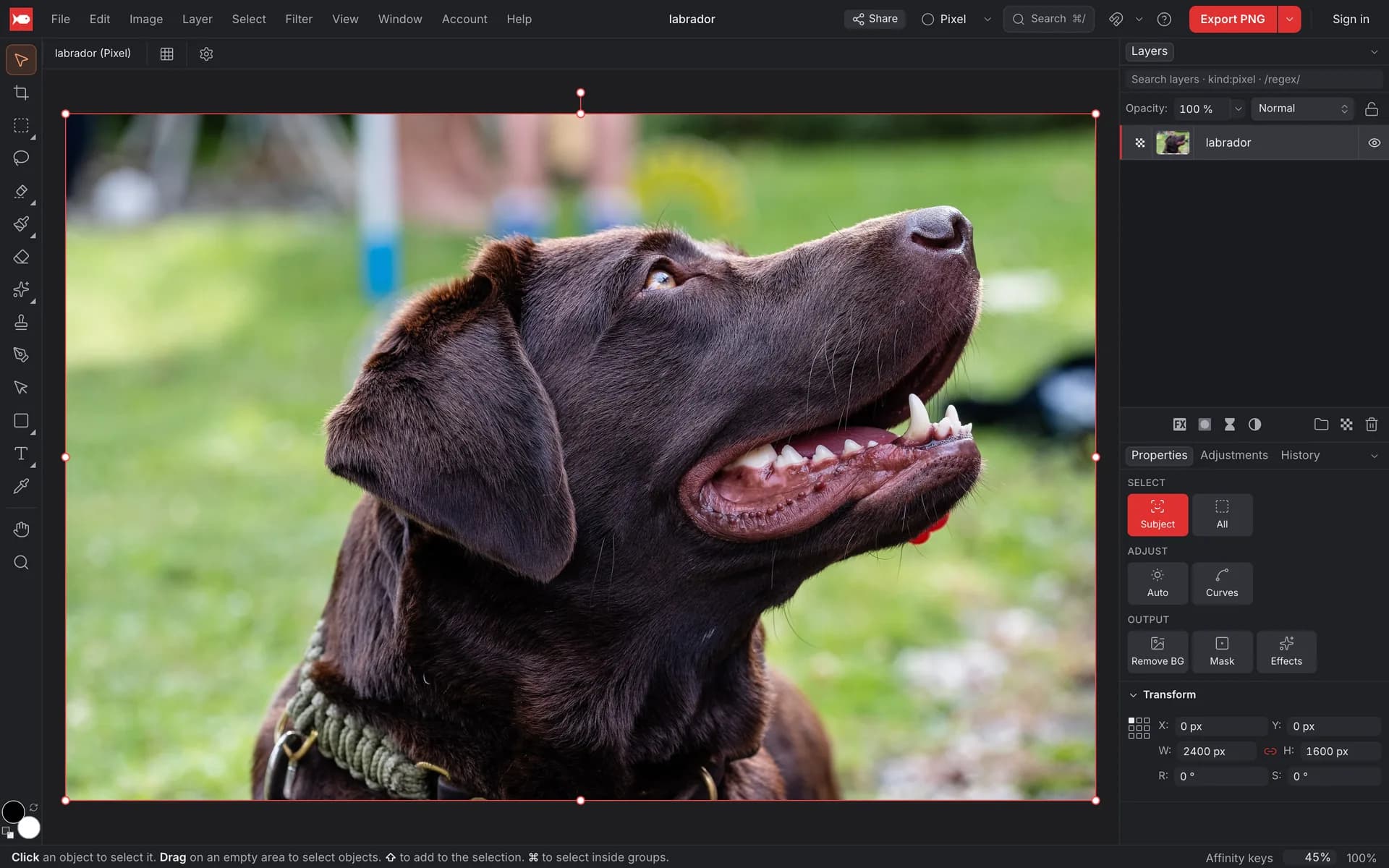
What you can do with it
koi.photo is made for real editing work, not only quick fixes. It works with layers, and most edits are non-destructive, so you can change them later.
- Layers, masks and blend modes. Pixel, text, vector, adjustment and filter layers, groups, layer masks, clipping masks and all 27 Photoshop blend modes. → Layers & masks
- Select Subject and Remove Background. One click, using an AI model that runs on your own computer. Your photo is never uploaded. → Select Subject
- Adjustments and live filters. Curves, Levels, HSL, White Balance, Gradient Map, Gaussian Blur, Unsharp Mask and more. They all stay editable as layers. → Adjustments & filters
- Retouching. The Remove tool, the Healing Brush, the Clone Brush and content-aware fill. → Retouching
- Selections. Marquees, freehand and polygonal selections, a magic wand (Flood Select), a Selection Brush, Quick Mask and Refine Selection. → Selections
- Vector design. The Pen and Node tools, shapes, gradients, strokes and live boolean operations. → Vector tools
- Text. Artistic and frame text, with bundled fonts, a curated Google Fonts list, your own uploaded fonts or the fonts on your computer. → Text & fonts
- Photoshop files. Open PSDs with their layers, masks, adjustment layers and text, and export back to PSD. → PSD files
- Export. PNG, JPEG, WebP, SVG, PDF and PSD, with a live preview and size presets for social media. → Export
Free, and private by default
There's no trial, no watermark and no paywall for the editor. You don't need an account: koi.photo autosaves your work in your browser, and if the tab crashes it offers to recover your document the next time you open it.
Your photos stay on your device while you edit. Select Subject and Remove Background run locally: the first time you use them, koi.photo downloads the model once and then runs it in your browser. The optional generative tools are the exception: they send the area around your selection to a cloud model when you click Generate. → Generative AI
If you want your files on more than one device, you can sign in for an optional free account with 1 GB of cloud storage. It adds version history and share links, and lets people edit a document together in real time. More in Free & private and Cloud & sharing.
Feels like the tools you know
If you've used Affinity Photo, Photoshop or Figma, you'll find your way around quickly. The menus and tools follow the usual conventions, and on the start screen you can switch the keyboard shortcuts to an Affinity, Photoshop or Figma layout.
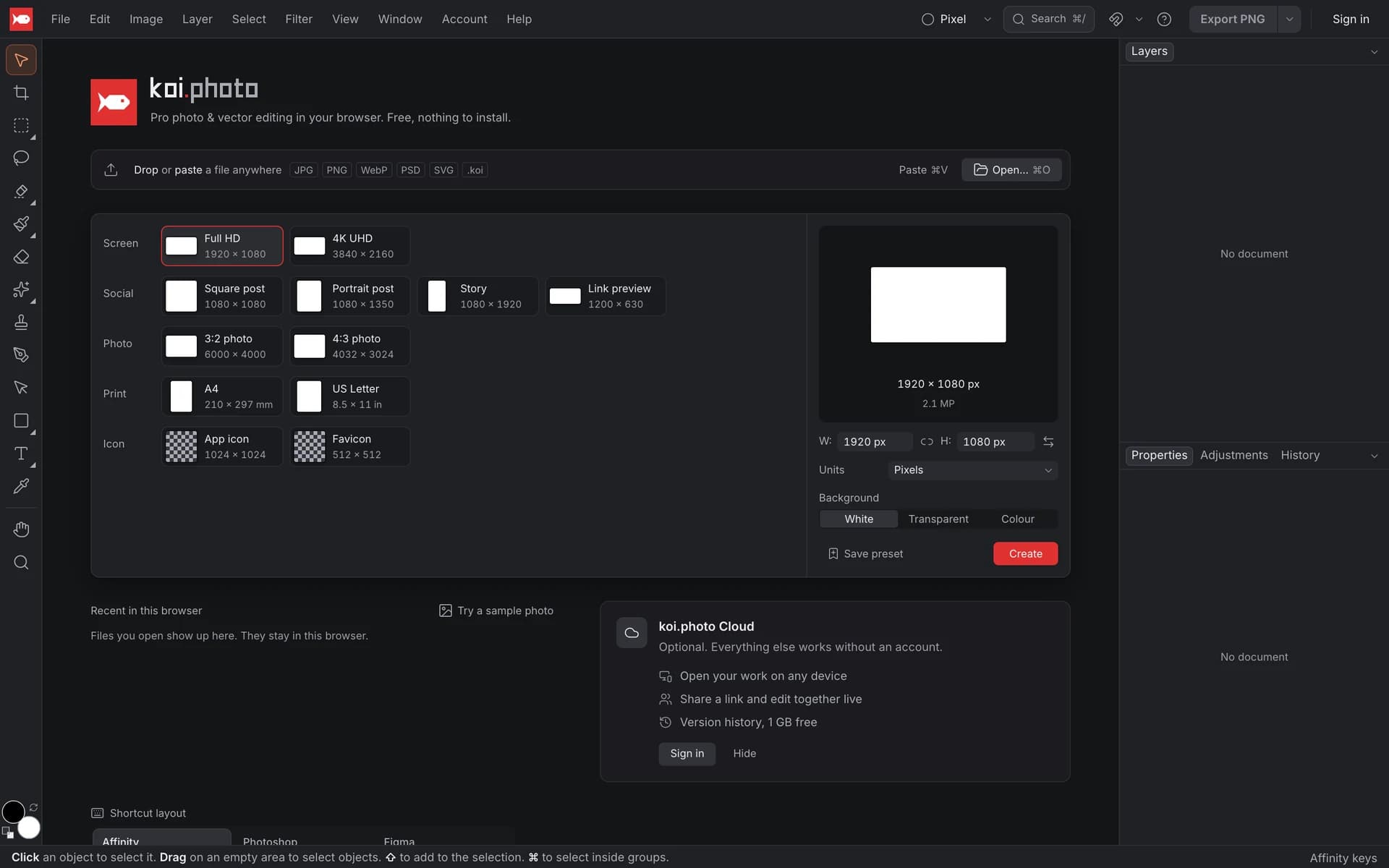
There are two workspaces, called studios: Pixel for photo editing and Vector for illustration and layout. Switch between them in the top bar. See Keyboard shortcuts for the details.
What you need
A current desktop browser. koi.photo uses WebGPU for fast, GPU-accelerated rendering, which recent versions of Chrome and Edge have. Where WebGPU isn't available, it falls back to WebGL2 in a limited mode. koi.photo is built for a mouse, trackpad or pen. Touch gestures such as pinch-to-zoom on tablets aren't supported yet.
What koi.photo isn't (yet)
We'd rather tell you up front:
- There's no installable app, and no offline mode beyond your browser's own cache.
- It can't open RAW camera files, HEIC, TIFF or PDF.
- There's no text-to-image. Generative Fill, Expand and AI Remove are optional cloud tools that need a free account and use monthly credits; the local AI stays free and private.
For a feature-by-feature comparison, see how koi.photo compares.