
Vector tools
Draw with the Pen tool, shapes and live boolean operations in a free vector editor that runs in your browser.
koi.photo is also a free online vector editor. You draw with the Pen tool, shapes and a Pencil, combine shapes with boolean operations that stay editable, and export the result as SVG or PDF. It runs in your browser, with no install and no account.
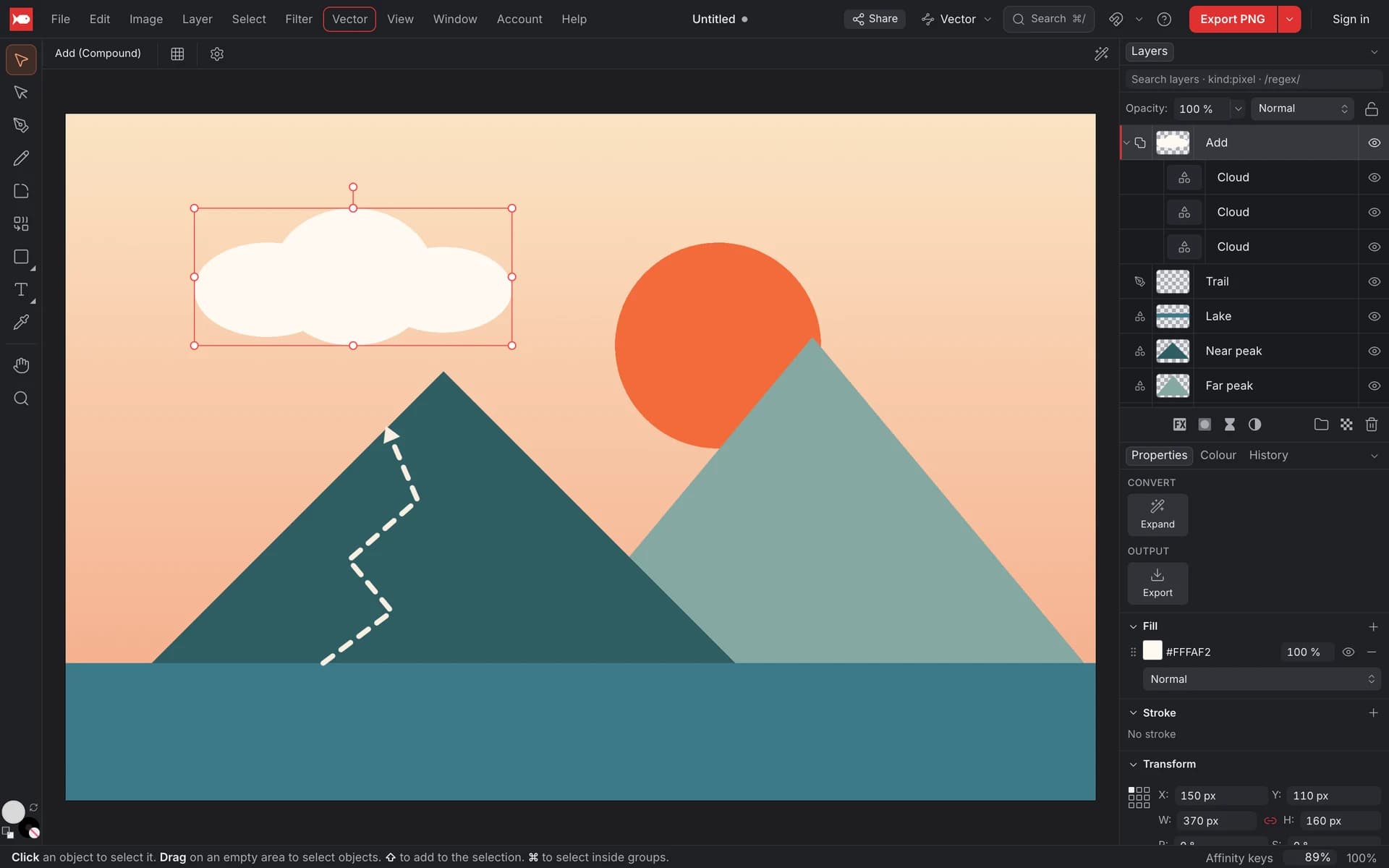
The Vector studio
koi.photo has two workspaces, called studios. Pixel is for photo editing and Vector is for illustration and layout. Switch with the studio chip in the top bar, or press F1 for Vector and F2 for Pixel. On a Mac the F-keys often control brightness and volume, so ⌥⌘1 and ⌥⌘2 (Ctrl+Alt+1 and Ctrl+Alt+2) work too.
The Vector studio shows the vector tools in the toolbar on the left:
| Tool | Key | What it does |
|---|---|---|
| Move Tool | V | Select, move, scale and rotate objects. |
| Node Tool | A | Edit the nodes and handles of a curve. |
| Pen Tool | P | Draw curves node by node. |
| Pencil Tool | N | Draw freehand; the line is smoothed into a curve. |
| Corner Tool | C | Round the corners of shapes and curves. |
| Shape Builder Tool | S | Merge or remove regions of overlapping shapes. |
| Shapes | U | Rectangle, Ellipse, Rounded Rectangle, Triangle, Polygon, Star, Arrow and Line. |
| Artistic Text Tool / Frame Text Tool | T | Add text. See Text & fonts. |
The Pen, Node, Shape and Text tools are in the Pixel studio too. Pencil, Corner and Shape Builder are only in Vector. The tool keys are the same in the Affinity, Photoshop and Figma shortcut layouts. Pressing a key again cycles through its group: U goes from Rectangle to Ellipse to Rounded Rectangle. The other shapes have no key: click the small triangle on the shapes button in the toolbar, or hold the button, and pick one.
Shapes
Pick a shape tool and drag on the canvas. Hold ⇧ (Shift) for a square or circle. Shapes stay live after you draw them: orange handles on the canvas let you change the corner radius of a rectangle, the inner radius of a star, the apex of a triangle, or the head and shaft of an arrow.
Use the Fill and Stroke wells and the Width field in the bar above the canvas to set the colours before you draw.
There's no field yet for the number of points on a star or the number of sides of a polygon. Both have five. If you need a different shape, draw it with the Pen tool or use Convert to Curves and edit the nodes.
Draw curves with the Pen tool
Click for corners, drag for curves
Choose the Pen Tool (P). Click to place a sharp node. Click and drag to place a smooth node; the drag pulls out its handles and bends the curve.
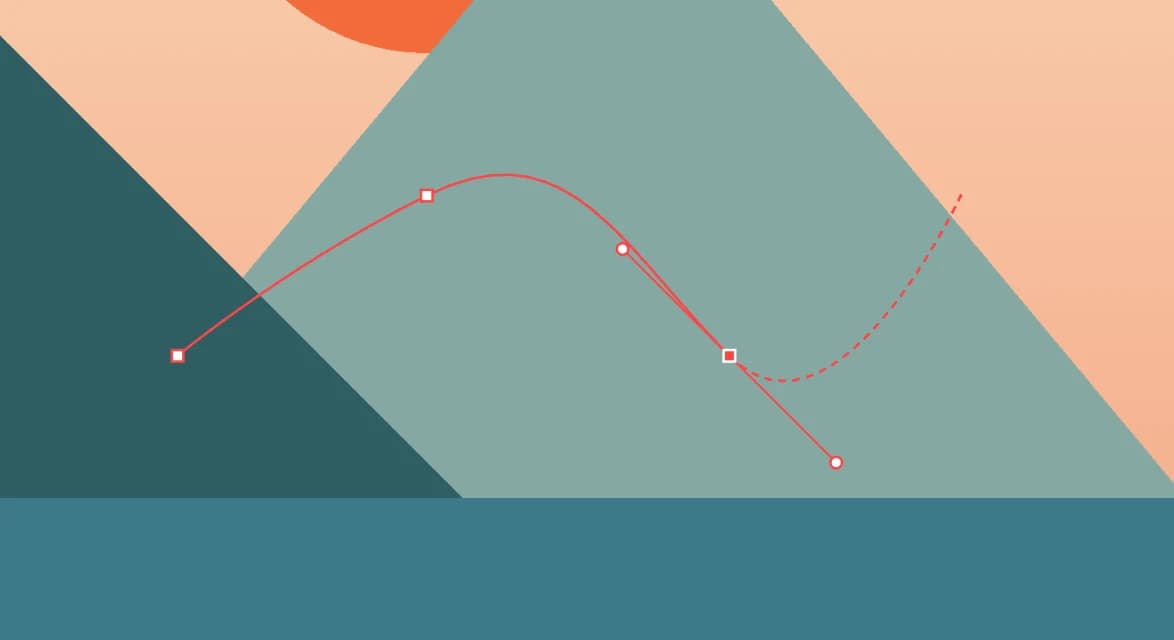
Finish the curve
Click the first node to close the shape. To finish an open curve, press Return or Esc. Backspace removes the last node while you draw.
Fine-tune with the Node tool
Switch to the Node Tool (A). Drag nodes and handles to reshape the curve. The bar above the canvas lets you change the selected nodes:
- Sharp, Smooth or Smart (Smart keeps the curve flowing through the node automatically).
- Close Curve, Reverse and Delete.
- Convert to Curves turns a shape or text into an editable curve.
The Pencil Tool (N) is the quick alternative: draw freehand and koi.photo smooths the line into a curve. The Smoothing setting controls how much.
Round corners with the Corner tool
Choose the Corner Tool (C) and drag a corner along its edge to set the radius. On a rectangle this rounds all four corners; hold ⌥ (Alt) to round only one. Triangles, polygons and stars stay live shapes. On a curve, the rounding is applied to the nodes and can't be changed again later.
Combine shapes: boolean operations online
Boolean operations make one shape out of several. Select two or more shapes and the Properties panel shows four Combine tiles:
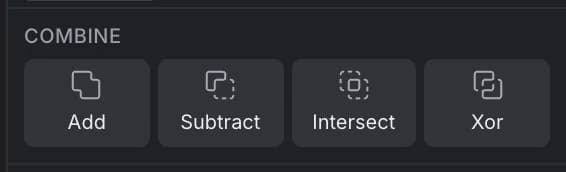
- Add merges the shapes.
- Subtract cuts the upper shapes out of the bottom one.
- Intersect keeps only where they overlap.
- Xor keeps everything except where they overlap.
Live compounds vs permanent booleans
The Combine tiles make a live compound. In the Layers panel it's one layer (named Add, Subtract, Intersect or Xor) with the original shapes inside it. You can still move, resize or edit each shape and the result updates. The compound takes its fill and stroke from the bottom shape.
When you're done, click Expand in the Properties panel to turn the compound into a single curve.
If you want the result straight away, use the Vector ▸ Geometry menu. Its plain items (Add, Subtract, Intersect, Xor) apply the operation permanently, the items marked (Compound) create a live compound, and Divide cuts the shapes into separate pieces wherever they overlap. The same four operations also sit as icons at the end of the bar above the canvas; ⌥-click (Alt-click) one to apply it permanently.
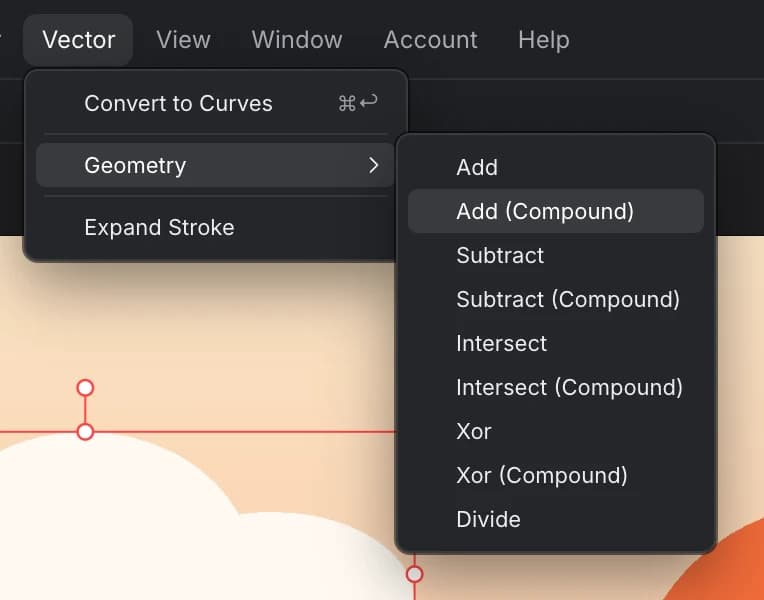
There's no "release compound" yet. To go back to separate shapes, undo with ⌘Z (Ctrl+Z).
The Shape Builder
The Shape Builder Tool (S, Vector studio) works directly on the canvas. Select two or more overlapping shapes, then click or drag across the regions you want to merge. Hold ⌥ (Alt) to remove regions instead. It's the quickest way to cut a complex shape out of simple ones.
Fill and stroke
Select a shape or curve and look at the Fill and Stroke sections of the Properties panel. Each object can have several fills and strokes, stacked, each with its own opacity and blend mode. Click + to add one.
- Fill: a solid colour or a Linear, Radial or Conical gradient. Click the swatch to edit it.
- Stroke: width, alignment (Inside, Centre, Outside), cap (Butt cap, Round cap, Square cap), join (Miter join, Round join, Bevel join), a Dash pattern such as
6 3, and Arrows at the start and end (Triangle, Open, Circle, Square or Bar).
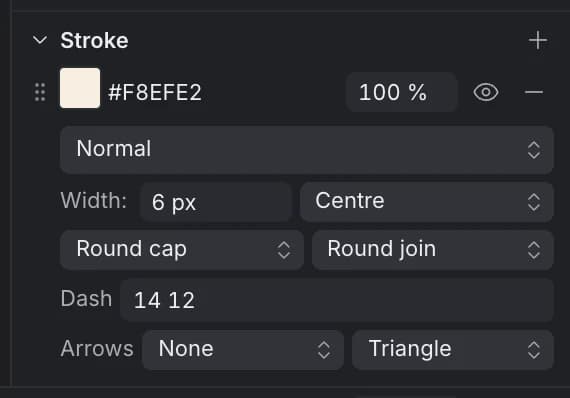
To turn a stroke into a filled shape, choose Vector ▸ Expand Stroke. Arrowheads aren't expanded.
Try it in the editorExport as SVG or PDF
Choose File ▸ Export… and pick SVG or PDF. Vectors stay vectors in both. In SVG, text can stay editable or become outlines. PDF exports one page at the document size. PNG, JPEG and WebP work too if you need a picture. See Export for all the options.
You can also open SVG files: their shapes, paths, groups and text become editable layers.
What's not there yet
- No Knife, Contour or Blend tools, and no vector brushes.
- No artboards: a document is one canvas.
- No on-canvas gradient tool. Gradients run across the object's bounds.
- No variable-width strokes.
- Vector layers can't be written to PSD yet. See PSD files.
FAQ
Is koi.photo a free alternative to Illustrator? For logos, icons, simple illustrations and layouts, often yes: it has the Pen tool, live shapes, live booleans and SVG/PDF export. It doesn't have Illustrator's full toolset (see the list above).
Can I edit an SVG online? Yes. Drop the SVG file onto koi.photo. Shapes, paths, groups, gradients and text open as editable layers. Things like SVG filters or arrow markers are left out, and koi.photo tells you what it changed.
Can I combine photos and vectors? Yes. Every document can mix pixel, vector and text layers, in either studio.
Do I need an account? No. Your work is autosaved in your browser. See Cloud & sharing if you want it on more devices.