
Keyboard shortcuts
Every koi.photo shortcut, plus Affinity, Photoshop and Figma layouts so the keys you already know just work.
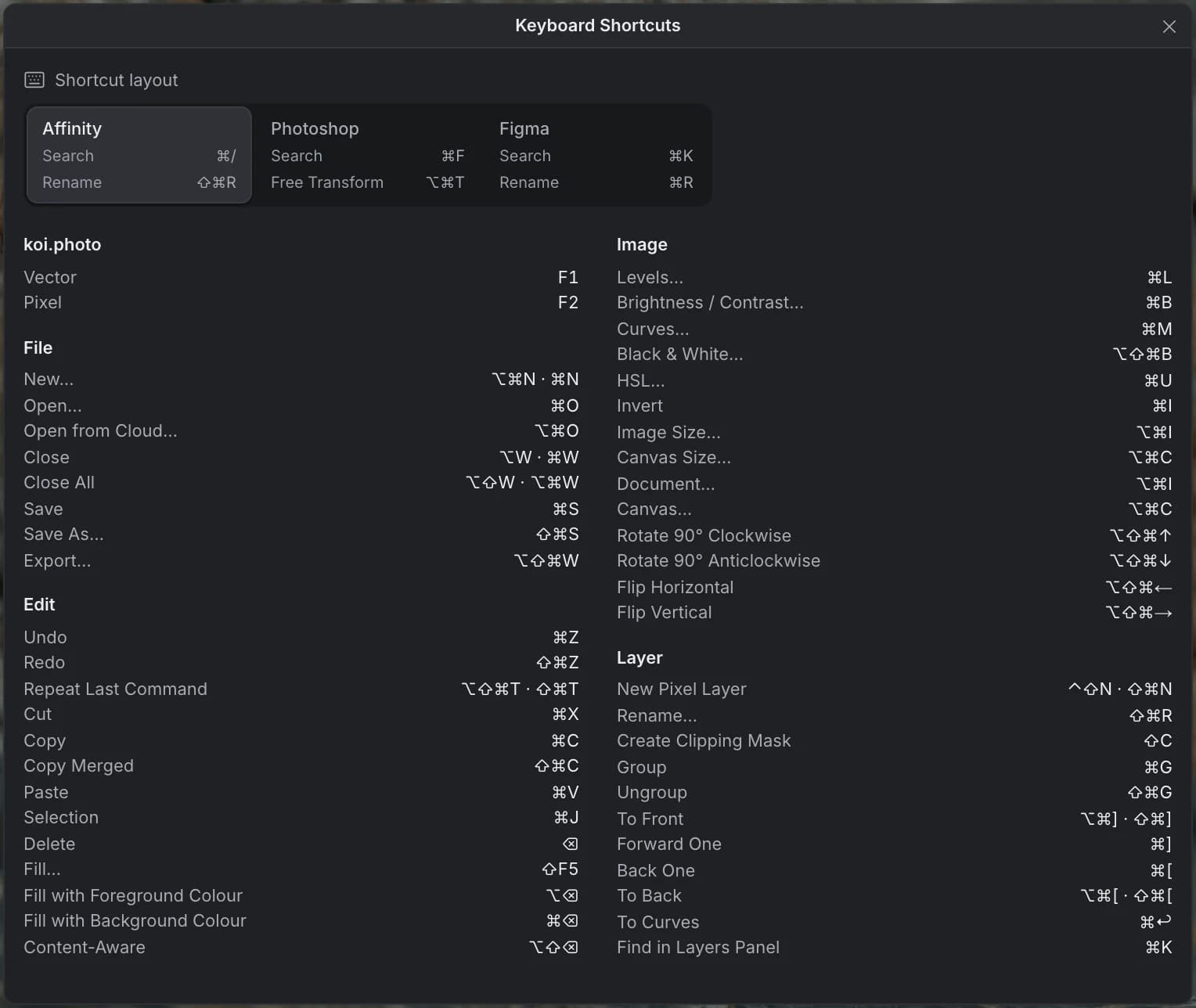
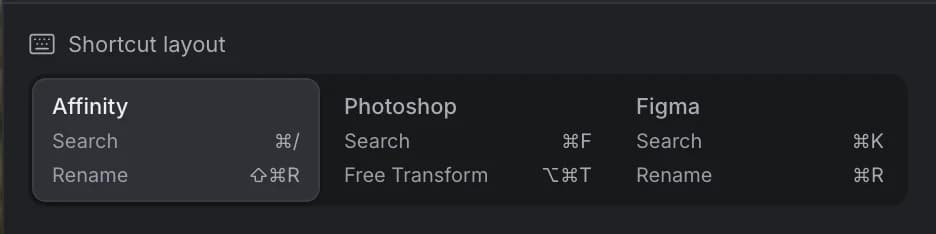
koi.photo comes with three keyboard shortcut layouts: Affinity (the default), Photoshop and Figma. Pick the one you're used to, and your Photoshop or Affinity shortcuts work in the browser too. This page lists the most useful keyboard shortcuts and explains where the layouts differ.
Shortcuts are written Mac first, with Windows in brackets: ⌘ is Ctrl, ⌥ is Alt and ⇧ is Shift.
Pick a shortcut layout
You can switch the layout in three places. The change applies at once, and every menu, tooltip and the shortcut sheet update to match.
- On the start screen, under Shortcut layout.
- In the status bar, bottom right: click the chip that says Affinity keys (or Photoshop keys, Figma keys).
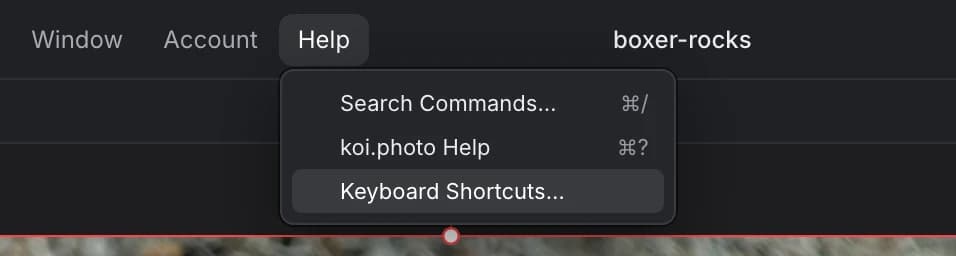
- In Help ▸ Keyboard Shortcuts…, at the top of the sheet.
koi.photo remembers your choice in this browser.
Try it in the editorSee every shortcut
Choose Help ▸ Keyboard Shortcuts… for the full sheet. It's generated from the layout you've picked, so it's always right for your setup.
Search Commands (⌘/)
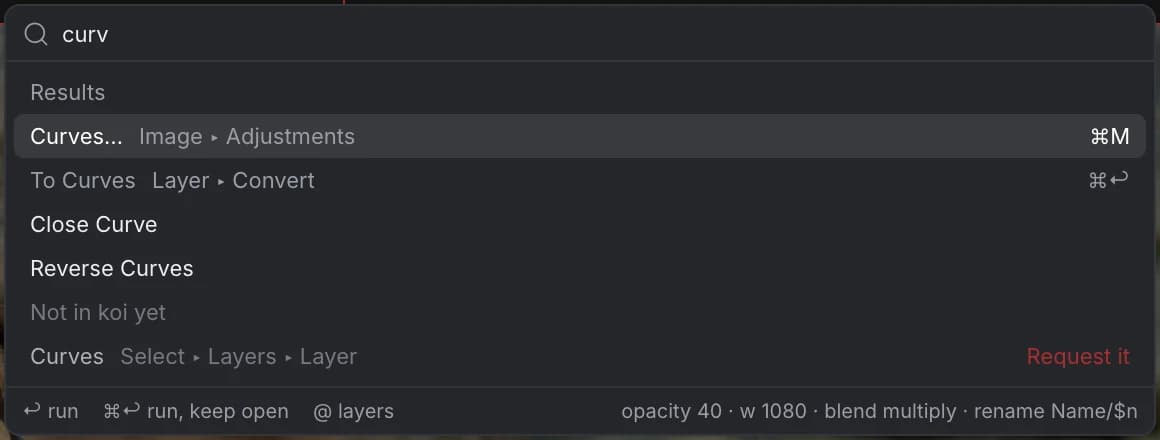
Can't remember a shortcut or where a command lives? Press ⌘/ (Ctrl+/) in any layout and type what you're looking for. Press Return to run the command. The results show each command's menu path and its shortcut, so you learn them as you go.
In the Photoshop layout, ⌘F (Ctrl+F) opens the search too. In the Figma layout, ⌘K (Ctrl+K) does.
Tool shortcuts
Press a letter to pick a tool. Where several tools share a letter, press it again to cycle through them. The letters are the same in all three layouts.
| Key | Pixel studio | Vector studio |
|---|---|---|
| V | Move | Move |
| C | Crop, Straighten | Corner |
| M | Rectangular, Elliptical, Column and Row Marquee | |
| L | Freehand Selection | |
| W | Selection Brush, Flood Select (magic wand), Object Selection | |
| B | Paint Brush | |
| Y | Pixel | |
| E | Erase Brush | |
| J | Remove, Healing Brush | |
| S | Clone Brush | Shape Builder |
| N | Pencil | |
| P | Pen | Pen |
| A | Node | Node |
| U | Rectangle, Ellipse, Rounded Rectangle | Rectangle, Ellipse, Rounded Rectangle |
| T | Artistic Text, Frame Text | Artistic Text, Frame Text |
| I | Colour Picker | Colour Picker |
| H | View (or hold Space) | View (or hold Space) |
| Z | Zoom | Zoom |
Switch studios with F1 (Vector) and F2 (Pixel). On a Mac, where the F-keys often control brightness and volume, use ⌥⌘1 and ⌥⌘2 (Ctrl+Alt+1 and Ctrl+Alt+2).
Common shortcuts
These are the same in every layout, except Rulers in the Figma layout (see Differences between the layouts).
File and editing
| Action | Mac | Windows |
|---|---|---|
| Open… | ⌘O | Ctrl+O |
| Save | ⌘S | Ctrl+S |
| Save As… | ⇧⌘S | Ctrl+Shift+S |
| Export… | ⌥⇧⌘W | Ctrl+Alt+Shift+W |
| Undo | ⌘Z | Ctrl+Z |
| Redo | ⇧⌘Z | Ctrl+Shift+Z |
| Cut, Copy, Paste | ⌘X, ⌘C, ⌘V | Ctrl+X, Ctrl+C, Ctrl+V |
| Paste at 100 % (no fit to the canvas) | ⌥V | Alt+V |
| Copy Merged | ⇧⌘C | Ctrl+Shift+C |
| Content-Aware fill | ⌥⇧⌫ | Alt+Shift+Backspace |
Layers and image
| Action | Mac | Windows |
|---|---|---|
| Group / Ungroup | ⌘G / ⇧⌘G | Ctrl+G / Ctrl+Shift+G |
| Create Clipping Mask | ⇧C | Shift+C |
| Forward One / Back One | ⌘] / ⌘[ | Ctrl+] / Ctrl+[ |
| Image Size… | ⌥⌘I | Ctrl+Alt+I |
| Canvas Size… | ⌥⌘C | Ctrl+Alt+C |
| Levels… | ⌘L | Ctrl+L |
| Curves… | ⌘M | Ctrl+M |
| HSL… | ⌘U | Ctrl+U |
| Brightness / Contrast… | ⌘B | Ctrl+B |
| Black & White… | ⌥⇧⌘B | Ctrl+Alt+Shift+B |
| Invert | ⌘I | Ctrl+I |
Selections
| Action | Mac | Windows |
|---|---|---|
| Select All / Deselect | ⌘A / ⌘D | Ctrl+A / Ctrl+D |
| Reselect | ⇧⌘D | Ctrl+Shift+D |
| Invert selection | ⇧⌘I | Ctrl+Shift+I |
| Feather… | ⇧F6 | Shift+F6 |
| Refine Selection… | ⌥⌘R | Ctrl+Alt+R |
| Quick Mask | Q | Q |
View and colours
| Action | Mac | Windows |
|---|---|---|
| Zoom in / out | ⌘+ / ⌘- | Ctrl++ / Ctrl+- |
| Zoom to fit | ⌘0 | Ctrl+0 |
| Zoom to 100% | ⌘1 | Ctrl+1 |
| Rulers | ⌘R | Ctrl+R |
| Guides | ⌘; | Ctrl+; |
| Grid | ⌘' | Ctrl+' |
| Hide or show the panels | Tab | Tab |
| Snapping on or off | ; | ; |
| Switch between the two colours (fill and stroke in Vector) | X | X |
| Swap the two colours | ⇧X | Shift+X |
| Reset colours | D | D |
Shortcuts the browser keeps
Browsers reserve some shortcuts for themselves: ⌘N opens a new window and ⌘W closes the tab, for example. A web page never receives them. For those commands, koi.photo uses an alternative. The menus show the alternative, and the shortcut sheet and Search Commands show both.
| Action | Usual shortcut | In koi.photo |
|---|---|---|
| New… | ⌘N | ⌥⌘N (Ctrl+Alt+N) |
| Close | ⌘W | ⌥W (Alt+W) |
| Close All | ⌥⌘W | ⌥⇧W (Alt+Shift+W) |
| New Pixel Layer | ⇧⌘N | ⌃⇧N on a Mac (Ctrl+Alt+Shift+L on Windows) |
| Repeat Last Command | ⇧⌘T | ⌥⇧⌘T (Ctrl+Alt+Shift+T) |
| Free Transform (Photoshop layout) | ⌘T | ⌥⌘T (Ctrl+Alt+T) |
Differences between the layouts
Most shortcuts are the same everywhere. These are the ones that change:
| Action | Affinity | Photoshop | Figma |
|---|---|---|---|
| Search Commands | ⌘/ | ⌘F or ⌘/ | ⌘K or ⌘/ |
| Rename layer | ⇧⌘R | none (double-click the name) | ⌘R |
| Find in Layers panel | ⌘K | none | none |
| Rulers | ⌘R | ⌘R | ⇧R |
| Free Transform | none | ⌥⌘T | none |
| Hide selected layers | none | none | ⇧⌘H |
| Lock selected layers | none | none | ⇧⌘L |
On Windows, replace ⌘ with Ctrl and ⇧ with Shift.
Tips for switchers
Coming from Affinity Photo or Designer? The default layout is built on Affinity's shortcuts, and koi.photo splits its tools into Pixel and Vector studios, much like Affinity's personas. ⌘K (Ctrl+K) jumps to the layer search.
Coming from Photoshop? Choose the Photoshop layout. ⌘F (Ctrl+F) searches commands like in recent Photoshop versions, and ⌘T becomes ⌥⌘T (Ctrl+Alt+T) because the browser keeps ⌘T for new tabs. The Move tool shows transform handles on the selected layer, so you often don't need Free Transform at all. Adjustments such as Curves (⌘M) and Levels (⌘L) open as adjustment layers, so they stay editable. See Adjustments & filters.
Coming from Figma? Choose the Figma layout. ⌘K searches commands, ⌘R renames, ⇧R shows the rulers, and ⇧⌘H and ⇧⌘L hide and lock the selection. The Vector studio (F1) is the place for shapes, the Pen and booleans. See Vector tools.
FAQ
Can I use Photoshop shortcuts in koi.photo? Yes. Choose the Photoshop layout on the start screen, in the status bar or in Help ▸ Keyboard Shortcuts…. Most common shortcuts, like ⌘M for Curves and ⌘L for Levels, are the same in every layout anyway.
Can I make my own shortcuts? Not yet. You can choose between the Affinity, Photoshop and Figma layouts.
Why doesn't ⌘N or ⌘W work? The browser keeps those shortcuts for itself. Use ⌥⌘N (Ctrl+Alt+N) for a new document and ⌥W (Alt+W) to close one.
How do I pan and zoom? Hold Space and drag to pan, or scroll. Hold ⌥ (Ctrl on Windows) and scroll to zoom. On a trackpad, pinch to zoom.
Related: What is koi.photo? · Comparison · Selections
Affinity is a trademark of Serif (Europe) Ltd / Canva, Photoshop a registered trademark of Adobe Inc., Figma a trademark of Figma, Inc. koi.photo isn't affiliated with or endorsed by them; the layouts are named after the apps whose shortcuts they follow.