
PSD files
Open and edit PSD files free, without Photoshop. Layers, masks, adjustment layers and text stay editable.
You can open and edit PSD files online in koi.photo, for free and without Photoshop. Layers, groups, masks, many adjustment layers, layer effects and text come in as editable layers. When something can't be carried over exactly, koi.photo tells you what and why. The file is read in your browser and never uploaded.
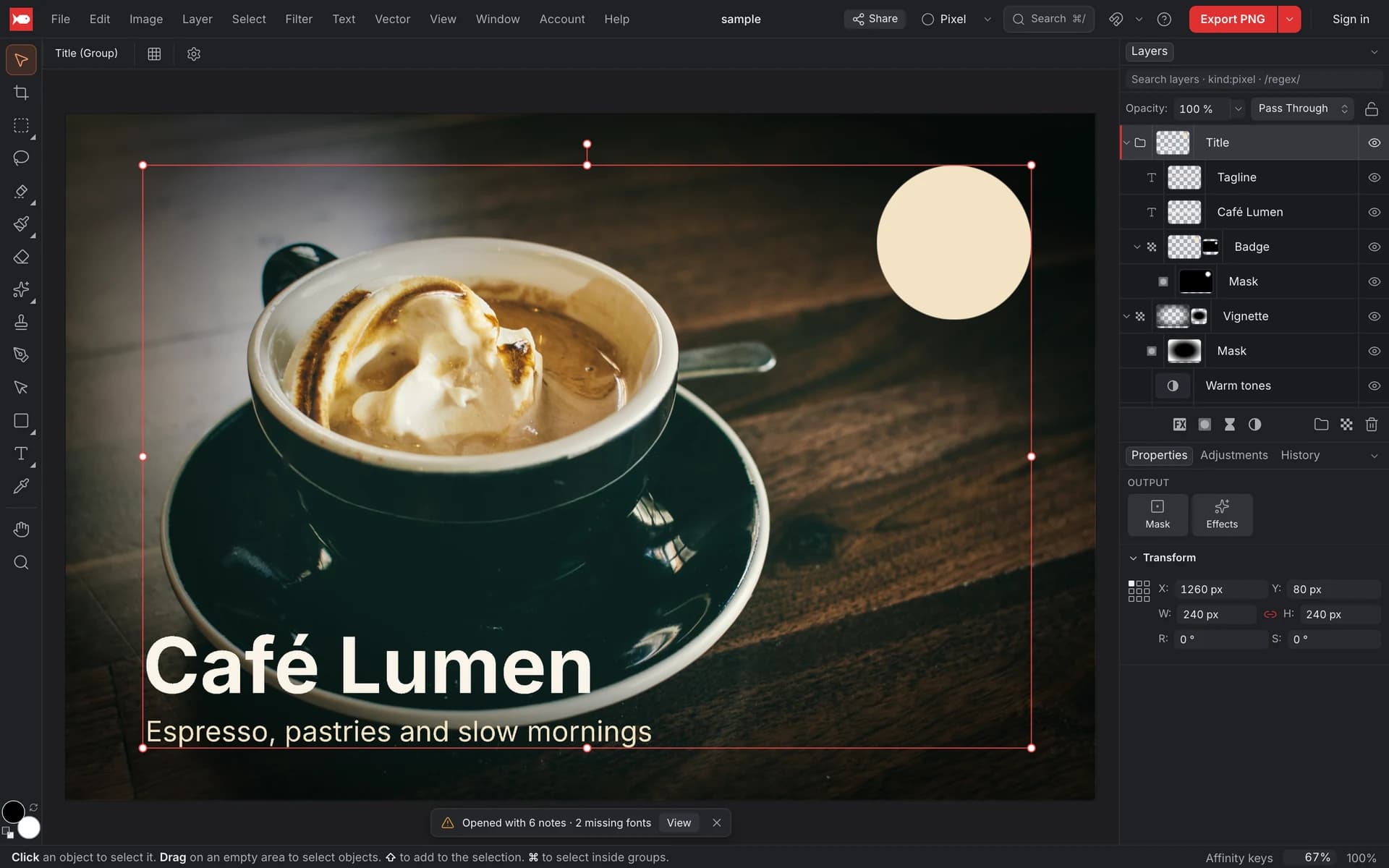
Open a PSD file online
Drop the file on koi.photo
Go to koi.photo and drop the .psd file onto the page, or choose File ▸ Open… (⌘O, or Ctrl+O). There's nothing to install and no account.
Check the banner
If anything in the file looks or works a little differently in koi.photo, a banner at the bottom says so, for example "Opened with 6 notes · 2 missing fonts". Click View to see the details. No banner means nothing needed changing.
Edit as usual
Every layer shows up in the Layers panel. Text layers stay editable, adjustment layers stay adjustable, and masks stay masks.
What's kept
- Layers and groups, with their names, order, visibility, opacity, fill opacity, locks and colour tags. Groups keep pass-through or isolated blending.
- Blend modes: all 27 Photoshop layer blend modes.
- Layer masks (with density and feather) and clipping masks.
- Adjustment layers: Brightness/Contrast, Levels, Curves, Exposure, Vibrance, Hue/Saturation, Color Balance, Black & White, Photo Filter, Channel Mixer, Invert, Posterize, Threshold, Gradient Map, Selective Color, and Color Lookup when the file embeds a .cube LUT. Other adjustment types are left out.
- Layer effects: Drop Shadow, Inner Shadow, Outer Glow, Inner Glow, Color Overlay, Gradient Overlay, Stroke and Bevel & Emboss.
- Text: editable, with its fonts, sizes and paragraph settings. Point text becomes artistic text and paragraph text becomes frame text.
- Document details: colour profile, EXIF and other metadata, resolution and guides.
The import report
Click View on the banner to open the report. It groups everything that changed:
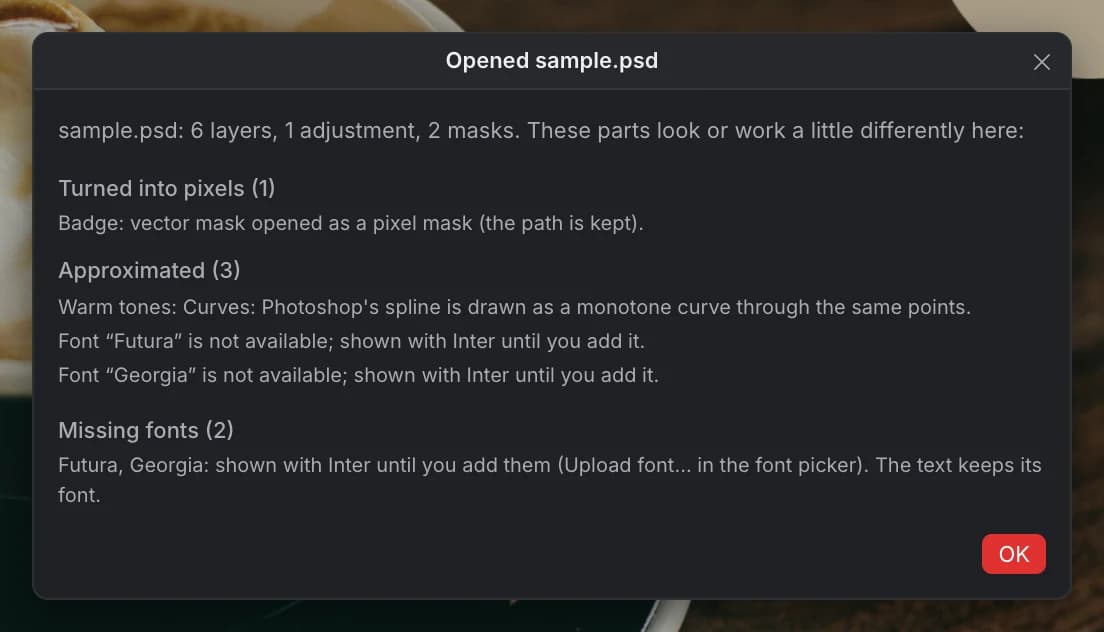
- Left out: things koi.photo can't show yet, such as Blend If ranges, Satin and Pattern Overlay effects, and unsupported adjustment types.
- Turned into pixels: the layer looks right but is no longer editable the way it was. Smart objects open as pixels (with their smart filters applied). Vector masks become pixel masks; the path is kept.
- Approximated: close, but not identical. Warped text shows straight and vertical text shows horizontally (both are kept for PSD export). Clipping to a group isn't supported yet and shows unclipped. Layer effects on groups and adjustment layers aren't drawn yet. A Curves adjustment is drawn as a slightly different curve through the same points.
Missing fonts
If the PSD uses a font that koi.photo doesn't have, the text shows in Inter and the report lists the font under Missing fonts. The text keeps its original font name. To fix it, add the font with Upload font… in the font picker (if you have the font file). koi.photo has a bundled set of fonts and a curated list of Google Fonts; see Text & fonts.
Convert PSD to PNG or JPEG online
To turn a PSD into a regular image, open it and choose File ▸ Export… (⌥⇧⌘W, or Ctrl+Alt+Shift+W). Pick PNG to keep transparency, JPEG for a smaller file, or WebP. The export merges all visible layers into one image, and the preview shows you the result and its file size before you save. See Export.
Export to PSD
koi.photo can also write PSD files, so you can hand your work to someone who uses Photoshop or Affinity. Choose File ▸ Export… and pick PSD. Instead of a preview, the dialog shows a Photoshop compatibility report that lists anything that won't carry over.
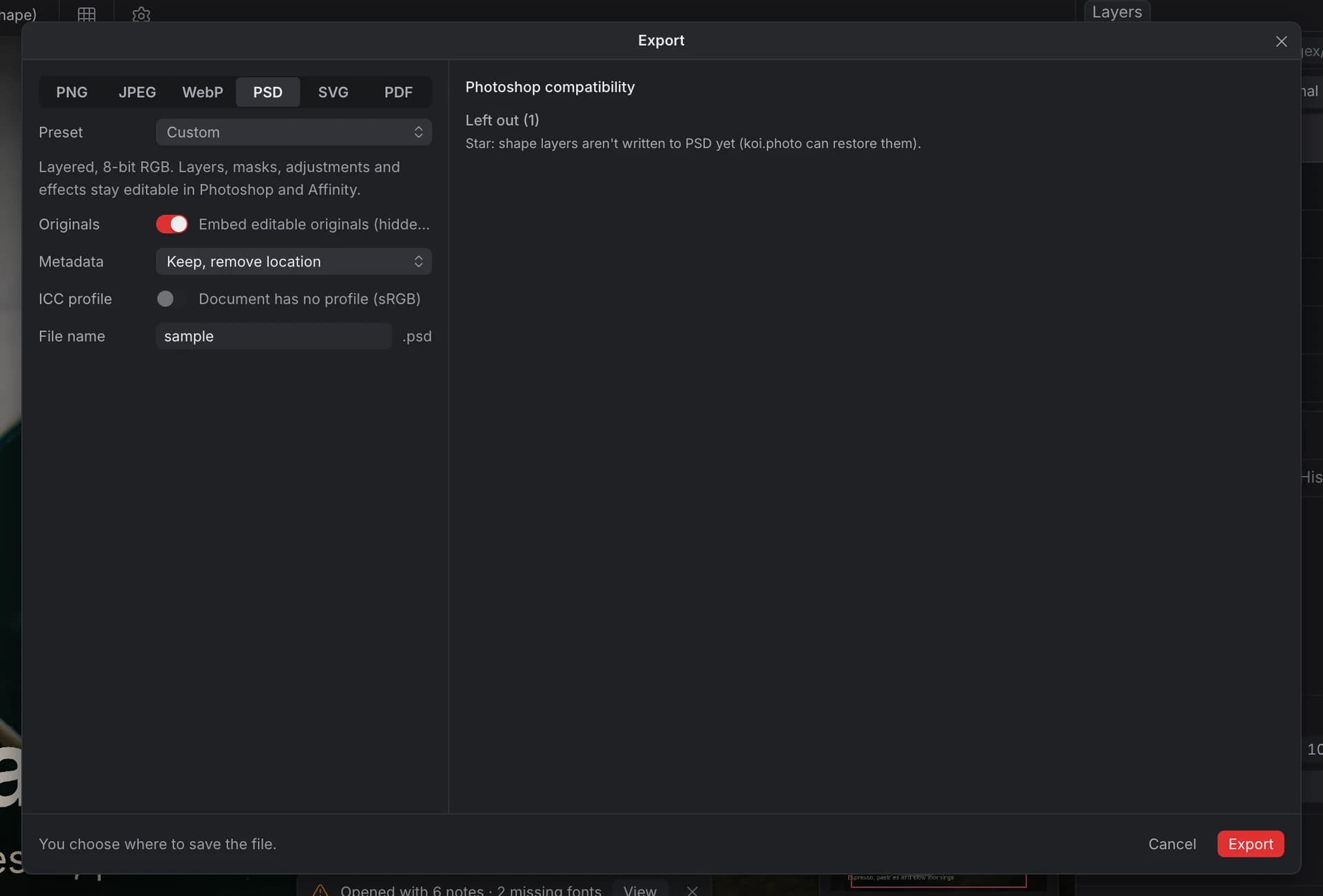
- The file is layered RGB, 8-bit, or 16-bit when your document is 16-bit. Layers, masks, adjustments and effects stay editable.
- Text is written as editable Photoshop text.
- Live filters and adjustments that Photoshop doesn't have are baked into the layer's pixels. With Originals ("Embed editable originals") on, which is the default, the unfiltered layer is also saved as a hidden layer, so nothing is lost. An adjustment layer that Photoshop has no twin for and that isn't attached to a layer isn't written as a layer; it shows only in the file's merged preview image (what file viewers show).
- Vector and shape layers aren't written to PSD yet. The report tells you which ones.
If you open a PSD that koi.photo exported, without changing it in between, you get your koi.photo document back exactly, live filters and vector layers included. If the file was edited in another app, it opens like any other PSD.
In Chrome and Edge, File ▸ Save As… can also save a PSD copy (pick PSD as the file type); your document itself stays a .koi file. For the full-fidelity format, see the .koi file format.
Limits
| Limit | |
|---|---|
| Size | Up to 30,000 px on each side. Very large files can also run out of browser memory. |
| PSB (Large Document Format) | Can't be opened yet. |
| Bit depth | 16-bit files open as 16-bit documents. 32-bit files open as 16-bit (brighter-than-white values are clipped). Export matches the document: 8-bit or 16-bit. |
| Colour mode | RGB opens as is. Grayscale, Indexed and Bitmap are converted to RGB. CMYK, Lab, Duotone and Multichannel can't be opened yet. |
| Artboards | The first artboard becomes the canvas; the others open as groups. |
| Shapes | Shape and fill layers are drawn from their fill; shape strokes aren't drawn yet. |
FAQ
Can I open a PSD without Photoshop? Yes. koi.photo opens PSD files in your browser, for free. It's also a quick PSD viewer: drop the file in to see every layer.
Is my PSD uploaded? No. The file is read on your computer, in the browser tab.
Can I edit a PSD and save it back as PSD? Yes, with File ▸ Export… ▸ PSD. Check the compatibility report first if your document has vector layers.
Why does my text look different? Usually a missing font. The import report tells you which one. Upload the font file and the text uses it.
Can it open .ai, PDF or TIFF files? No. See Export for the formats koi.photo can open.