
Install the app
Install koi.photo as a desktop app with its own window, more shortcuts, files opened from your computer and offline editing.
You can install koi.photo as an app on your computer. It's the same free editor, but it runs in its own window, opens image files from your desktop, and keeps working offline. There's nothing to download from a store and no account needed: your browser installs it from the website in a few seconds.
How to install koi.photo
In Chrome or Edge on Windows, macOS, Linux or ChromeOS:
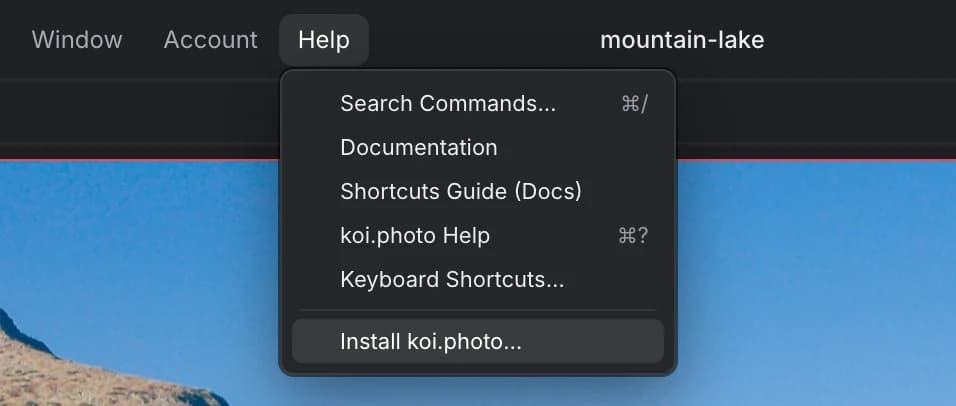
Open the Help menu
Open koi.photo and choose Help ▸ Install koi.photo…. You can also click the install icon at the right end of the browser's address bar.
Confirm
Click Install in the browser's dialog. koi.photo opens in its own window and gets an icon in your Start menu, Dock or app launcher.
Safari on macOS: choose File ▸ Add to Dock. The app gets its own window and works offline, but Safari doesn't let it open files from Finder. Firefox doesn't install web apps on the desktop; koi.photo works the same in a Firefox tab, just without the extras below.
Try it in the editorWhat the app adds
- Its own window. No tabs or address bar. In Chrome and Edge, the menu bar can sit in the title bar next to the window buttons (toggle it with the arrow in the title bar), which gives the canvas more room.
- The shortcuts you know. In a browser tab, the browser keeps some shortcuts for itself, so koi.photo uses alternatives there. In the app, the usual ones work: ⌘N (Ctrl+N) for New…, ⌘W (Ctrl+W) to close a document, ⌃⇥ (Ctrl+Tab) for the next document, ⇧⌘N (Ctrl+Shift+N) for a new pixel layer. The menus always show the shortcut that works where you are. See Keyboard shortcuts.
- Open files from your computer. Right-click a
.koi, PSD, PNG, JPEG, WebP, SVG or Affinity file and choose Open with ▸ koi.photo. If koi.photo is already open, the file opens there as a new document. When you save a.koiyou opened this way, it saves back to the same file. - Share to koi.photo. Where the system has a share menu for apps (Android, ChromeOS), koi.photo is listed as a target for images.
- Quick actions. Right-click the app icon for New document and Open….
Does koi.photo work offline?
Yes. After your first visit, koi.photo keeps a copy of the editor in your browser, so it starts and works without an internet connection, installed or not. Offline you can:
- open photos, PSD, SVG and
.koifiles from your computer; - edit, with every tool, layer, mask and adjustment;
- autosave to the browser and recover after a crash;
- save
.koifiles and export PNG, JPEG, WebP, PSD, SVG and PDF.
What needs a connection: the cloud (saving, sharing, editing together) and these docs. The AI tools (Select Subject and Remove Background) and the vector booleans download what they need the first time you use them, so use them once while you're online.
Updates
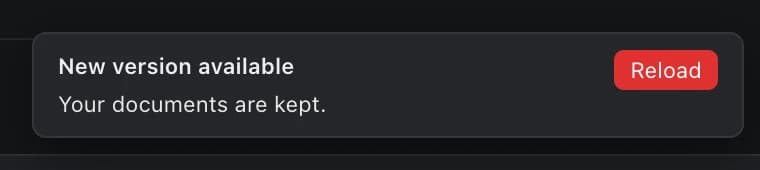
koi.photo updates itself. When a new version is ready, a small message appears at the bottom of the window. It never reloads on its own while you're working: click Reload when it suits you, or ignore it and the new version starts next time you open koi.photo.
FAQ
Is the app free? Yes. It's the same editor as the website, with the same free account for the cloud if you want it.
Does installing upload my photos? No. Installing only copies the editor itself (about 16 MB) into your browser. Your photos stay on your computer, as they do in a tab. See Free & private.
How do I uninstall it? In the app window, open the browser's app menu (the ⋮ or ⋯ button in the title bar) and choose Uninstall koi.photo. The browser asks whether to also clear koi.photo's data: leave that unticked to keep the documents and recent files stored in your browser.
I don't see Install koi.photo… in the Help menu. Your browser can't install apps (Firefox), or koi.photo is already installed. In Safari, use File ▸ Add to Dock.