
Free & private
No sign-up, no watermark. Your photos stay in your browser, the AI runs on your device, and the cloud is optional.
koi.photo is a free online photo editor with no sign-up. You open it, drop in a photo and edit. There's no trial, no watermark and no paywall. Your photos stay in your browser while you work, and the only time a document goes to our servers is when you choose to save it to the cloud.
This page explains what's free, where your work is stored, and exactly what leaves your device.
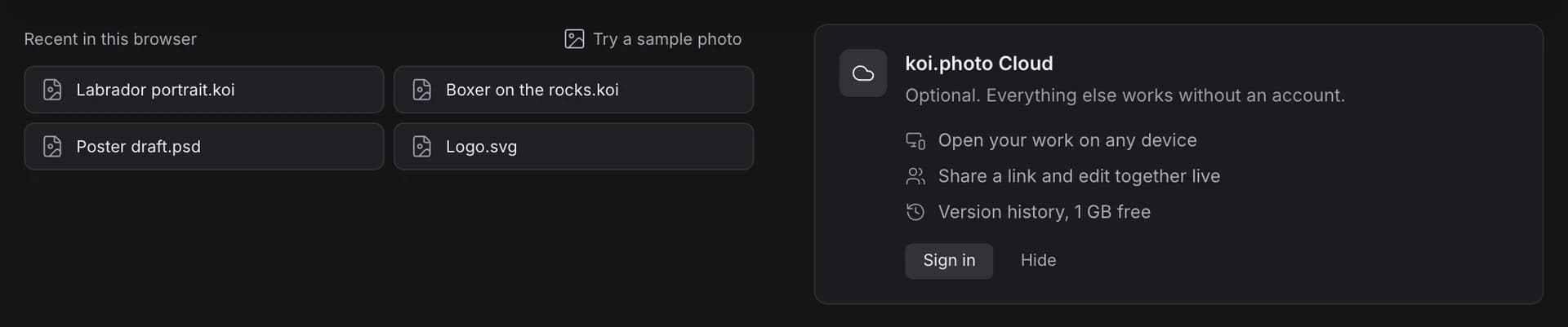
Is koi.photo free?
Yes. Every tool in the editor is free: layers, masks, adjustments, retouching, vector tools, text, PSD files, export and the AI tools Select Subject and Remove Background. You don't need an account for any of it. The optional cloud AI tools (Generative Fill, Expand, AI Remove) are the one exception: they need a free account and use credits, 50 a month.
There's also an optional free account. It adds cloud storage (1 GB), sharing and real-time collaboration. The sign-in dialog puts it like this: "Free, with 1 GB of storage. No trial, no card."
Try it in the editorA photo editor with no sign-up
You don't create an account, give an email address or install anything. Open koi.photo in a desktop browser and start editing.
If you do want the cloud, you sign in with an email link. There's no password: koi.photo emails you a link, and the same link creates your account the first time. The dialog also promises "No ads, no newsletters. We only email you sign-in links."
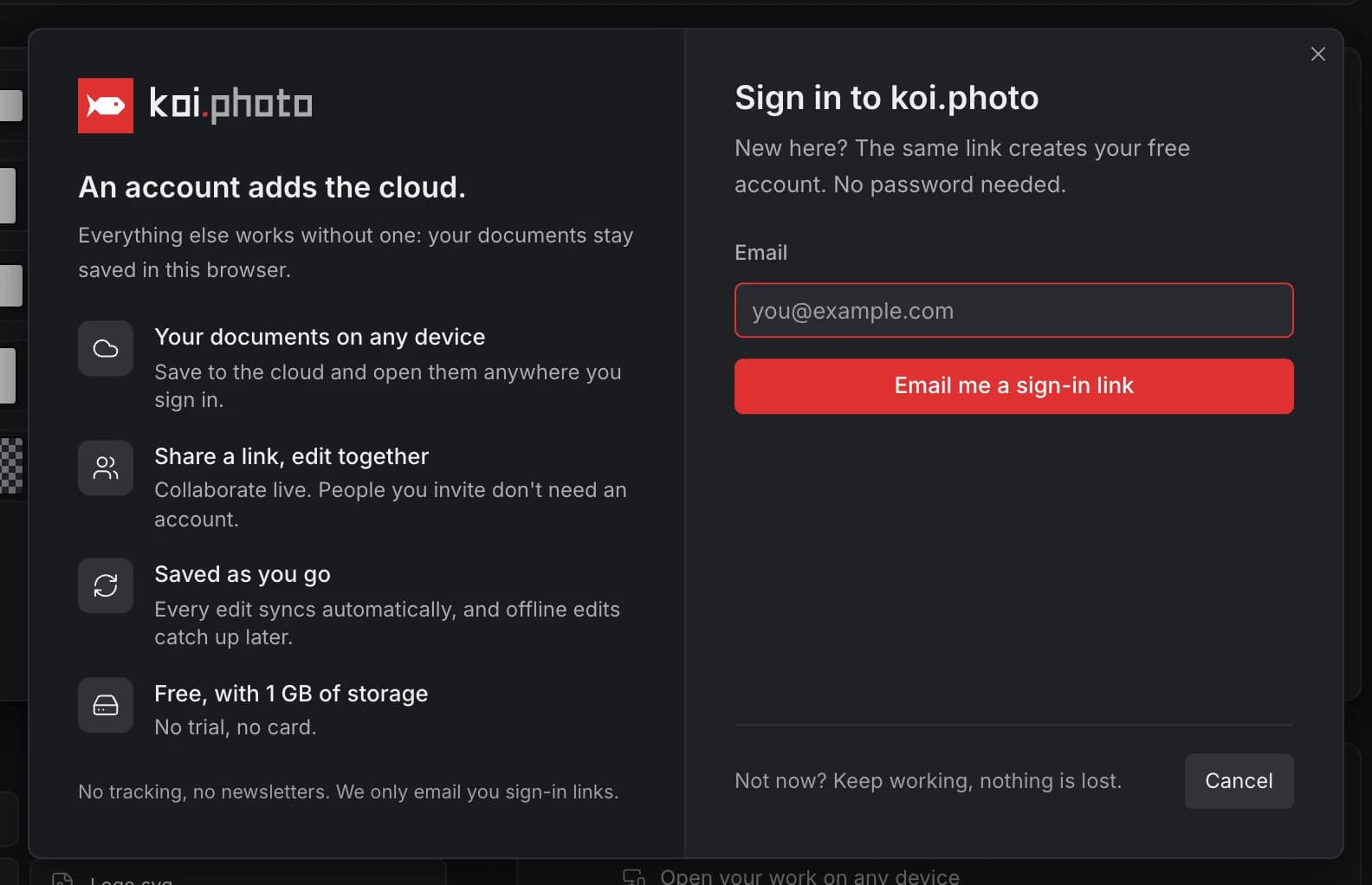
What the free account adds:
- Your documents on any device. Save to the cloud and open them anywhere you sign in.
- Share a link, edit together. People you share with don't need an account.
- Version history.
More in Cloud & sharing.
Where your work is stored
Autosave in your browser
koi.photo saves every edit to your browser's own storage as you work. You don't press anything for this. If you close the tab, the work isn't lost.
Crash recovery
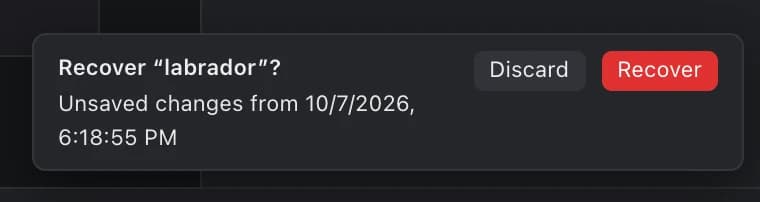
If the tab crashes, or you close it with unsaved changes, koi.photo asks the next time you open it: Recover or Discard. You get one prompt per document.
.koi files on your disk
To keep a document for good, save it with File ▸ Save (⌘S, or Ctrl+S on Windows). You get a .koi file that keeps every layer, mask and text editable. In Chrome and Edge, later saves write back to the same file. Other browsers download a copy instead. See .koi files.
The cloud, if you choose it
Documents you save to the cloud are stored on koi.photo's servers. That only happens when you're signed in and save a document there yourself.
Clearing browser data deletes your autosaves
Autosave lives in your browser's storage. If you clear your site data, use a private window, or your browser frees up space, the autosaved copies can be gone. Save a .koi file or export your image when you're done, and don't rely on autosave alone.
Does koi.photo upload my photos?
No. When you open a photo, it's read in your browser and stays there. Editing, rendering, exporting and the local AI features all run on your computer.
Here is everything that does go over the network, and when:
| What | When | Is your photo sent? |
|---|---|---|
| The AI model (Select Subject, Remove Background) is downloaded from Hugging Face | Once, the first time you use it, after you click Download | No |
| A Google Font is downloaded from a font CDN (cdn.jsdelivr.net) | When you pick one of the Google Fonts, open a document that uses one, or type characters that need a fallback font (for example Japanese, Arabic or emoji) | No |
| An image you drag in from another website is fetched through koi.photo's image proxy | Only when that website blocks loading the image directly | Only that web image, which was already public |
| Images linked inside an SVG file are loaded from their servers | Only if you click Load when koi.photo asks | No |
| The document is saved to koi.photo's servers | Only when you save to the cloud | Yes, that's the point of the cloud |
| The area around a selection is sent to a cloud AI model | Only when you click Generate in Generative Fill / Expand or use AI Remove (signed in, after accepting a one-time notice) | Yes, a crop of up to 1024 px, a mask and your prompt; not stored by koi.photo |
| Your messages and a summary of the layers (names, text) go to the AI assistant | Only when you send a message to the assistant (signed in) | No, never pixels |
| Anonymous usage statistics (page views and events like "exported as PNG") go to our own Umami server, with no cookies and no file names | On every page view and a few actions; never with "Do Not Track", and you can turn it off in the privacy policy | No |
| A bot check by Cloudflare Turnstile | When you request a sign-in link, continue as a guest or open a share link | No |
The full details, with every provider and how long data is kept, are in the privacy policy.
The AI runs on your device
Select Subject and Remove Background use an open-source AI model that runs in your browser. The first time, koi.photo asks before downloading it. After that, the model stays in your browser's cache and your photo is never uploaded for processing. The download prompt says it plainly: "Your photo is never uploaded."
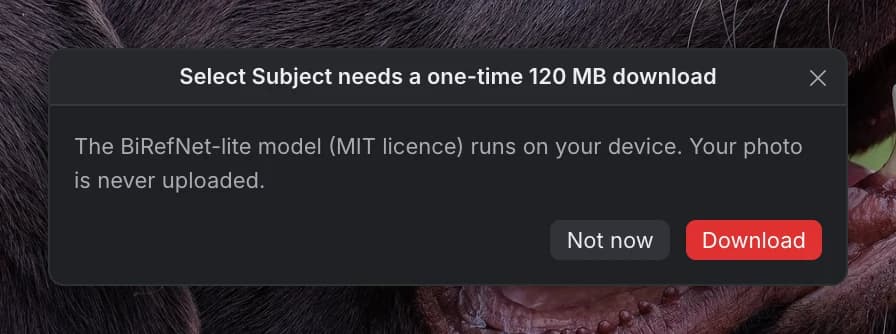
Generative AI is separate and optional. Generative Fill, Expand and AI Remove run on cloud models, need a free account and use credits; they send the area around your selection, and only when you ask. More in Select Subject and Generative AI.
Keeping your work safe
- Save a
.koifor anything you want to come back to. It's the full, editable document. - Export a PNG, JPEG or WebP when you're done. See Export.
- Use the cloud if you work on more than one computer or want a copy that doesn't depend on one browser.
FAQ
Do I need an account to use koi.photo? No. Everything in the editor works without one. The account only adds the cloud.
Is there a free trial or a watermark? No trial and no watermark. The editor is free, and so is the account with 1 GB of cloud storage.
Can koi.photo see my photos? Not unless you save them to the cloud. Photos you open are edited in your browser and aren't uploaded.
What happens if I close the tab? Your work is autosaved in the browser. Next time you open koi.photo, it offers to recover any document with unsaved changes.
Can I delete my cloud account? Yes. Account Settings has a Delete account option that removes your account and every cloud file. You can first download all your cloud files as .koi files with Download all files (.zip).